كيف تعرف إصدار iOS المثبت على iPhone؟.. خطوات بسيطة للتحقق من نظام التشغيل
20 يوليو 2026·اليوم السابع
كيف تعرف إصدار iOS المثبت على iPhone؟.. خطوات بسيطة للتحقق من نظام التشغيل

قد يبدو رقم إصدار نظام iOS مجرد معلومة تقنية، لكنه في الواقع عنصر مهم لمستخدمي iPhone، إذ يساعد في معرفة توافق التطبيقات، والاستفادة من المزايا الجديدة، وحل المشكلات الفنية، والتأكد من أن الهاتف يعمل بأحدث إصدار متاح، ويمكن التحقق من إصدار نظام التشغيل على iPhone خلال ثوانٍ، سواء من الهاتف نفسه أو باستخدام جهاز كمبيوتر.

الطريقة الأسهل.. من إعدادات iPhone

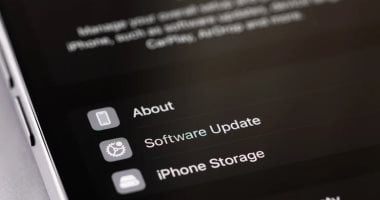
تعد هذه الطريقة الأسرع لمعرفة إصدار iOS المثبت على الهاتف، وذلك عبر الخطوات التالية:
* افتح تطبيق الإعدادات (Settings).
* انتقل إلى عام (General).
* اضغط على حول (About).
* ستجد رقم إصدار iOS ظاهرًا أعلى الصفحة أسفل اسم الهاتف مباشرة.
كما يمكن الضغط على رقم الإصدار للاطلاع على أبرز المزايا والتغييرات التي جاءت مع هذا التحديث.

معرفة إصدار iOS باستخدام الكمبيوتر

إذا سبق توصيل iPhone بجهاز كمبيوتر، فيمكن أيضًا معرفة إصدار النظام عبره، فعلى أجهزة Mac التي تعمل بنظام macOS Catalina أو أحدث، يتم استخدام تطبيق Finder، بينما تعتمد الأجهزة الأقدم على iTunes.
أما على أجهزة Windows، فيجب تثبيت تطبيق Apple Devices من متجر Microsoft Store، وهو التطبيق الذي حل محل iTunes لإدارة أجهزة آبل.

بعد تجهيز الكمبيوتر، اتبع الخطوات التالية:
* وصِل iPhone بالكمبيوتر باستخدام كابل USB.
* إذا ظهرت رسالة على الهاتف، اضغط Trust (الثقة) للسماح للكمبيوتر بالوصول إلى الجهاز.
* على أجهزة Mac، اضغط Allow إذا طُلب منك ذلك.
* افتح تطبيق Finder أو Apple Devices أو iTunes بحسب نظام التشغيل.
* اختر جهاز iPhone من القائمة الجانبية.
* انتقل إلى قسم General أو Summary.
* ستجد إصدار iOS الحالي، بالإضافة إلى معرفة ما إذا كان الهاتف يعمل بآخر تحديث متاح.

ماذا تفعل إذا لم يظهر iPhone على الكمبيوتر؟

إذا لم يتعرف الكمبيوتر على الهاتف، فهناك عدة خطوات يمكن تجربتها:
* استخدام كابل USB مختلف.
* توصيل الهاتف بمنفذ USB آخر.
* تحديث تعريفات USB على أجهزة Windows.
* التأكد من منح الكمبيوتر صلاحية الوصول إلى الهاتف عند ظهور رسالة Trust.

لماذا يجب معرفة إصدار iOS؟

يساعد معرفة إصدار نظام التشغيل في عدة أمور، أبرزها:
* التأكد من توافق التطبيقات الجديدة مع الهاتف.
* معرفة ما إذا كانت المزايا الحديثة متاحة على جهازك.
* تسهيل تنفيذ خطوات حل المشكلات الفنية.
* التأكد من الحاجة إلى تثبيت تحديث جديد للحصول على تحسينات الأداء وسد الثغرات الأمنية.


iOSiPhonesystem
الخبر متوفّر باللغات التالية:English
المصدر الأصلي للخبر
اليوم السابع

How to Identify the Installed iOS Version on Your iPhone: Simple Steps to Check the Operating System

July 20, 2026·Youm7
How to Identify the Installed iOS Version on Your iPhone: Simple Steps to Check the Operating System

The iOS version number may seem like just a technical detail, but it is actually an important element for iPhone users. It helps them know the compatibility of applications, take advantage of new features, solve technical problems, and make sure that their phone is running the latest available version. The operating system version can be checked on an iPhone in seconds, either from the phone itself or using a computer.

The easiest way... From iPhone settings

This method is the fastest way to find out what iOS version is installed on your phone. Here are the steps:
* Open the Settings app.
* Go to General.
* Tap About.
* The iOS version number will be displayed at the top of the page, directly below the phone’s name.
You can also tap on the version number to see the most important features and changes that came with this update.

Finding out the iOS version using a computer

If you have previously connected your iPhone to a computer, you can also find out the operating system version through it. On Mac devices running macOS Catalina or later, the Finder app is used, while older devices rely on iTunes.
For Windows devices, you need to install the Apple Devices app from the Microsoft Store. This app has replaced iTunes for managing Apple devices.

After setting up the computer, follow these steps:
* Connect iPhone to the computer using a USB cable.
* If a message appears on the phone, press Trust to allow the computer to access the device.
* On Mac devices, press Allow if prompted.
* Open Finder or Apple Devices or iTunes application depending on your operating system.
* Select the iPhone from the sidebar.
* Go to the General or Summary section.
* You will find the current iOS version and learn whether the phone is running the latest available update.

What should you do if iPhone doesn't appear on the computer?

If the computer does not recognize the phone, there are several steps that can be tried:
* Use a different USB cable.
* Connect the phone to another USB port.
* Update Windows USB drivers.
* Make sure you grant the computer access to the phone when prompted with the Trust message.

Why is it important to know the iOS version?

Knowing the operating system version helps in several ways, most notably:
* Ensuring compatibility of new applications with the phone.
* Knowing whether modern features are available on your device.
* Facilitating problem-solving steps.
* Confirming the need to install a new update for performance improvements and security patches.


iOSiPhonesystem
This article is also available in:العربية
Original source article
Youm7