الآن يمكنك رؤية وتحرير ما يتذكره جوجل جيميني عنك
18 نوفمبر 2026·إنجاجيت
الآن يمكنك رؤية وتحرير ما يتذكره جوجل جيميني عنك

تعديل ذاكرة الذكاء الاصطناعي طريقة لتوجيه استجاباته.

بقلم إيان كارلوس كامبل 17 نوفمبر/ تشرين الثاني، 2026 7:00 مساءً بتوقيت شرق الولايات المتحدة mundissima/Shutterstock أضف Engadget إلى Google: Google Discover

بالإضافة إلى القدرة على الاتصال واستخدام تطبيقات وخدمات أخرى، يأتي الكثير من فائدة المساعدين الافتراضيين من قدرتهم على توجيه استجاباتهم بناءً على ما يتعلمونه ويتذكرونه عنك. تسمح ميزة الذكاء الشخصي من جوجل لجيميني باستخلاص السياق من Gmail و YouTube والبحث وتطبيقات جوجل الأخرى، كما تبني الذكاء الاصطناعي ذاكرتها بناءً على تفضيلاتك وحقائق شخصية أخرى تظهر في المحادثات. على سبيل المثال، إذا أخبرت جيميني أنك تعاني من عدم تحمل اللاكتوز، فسيتجنب الروبوت التوصية بمنتجات الألبان.

اعتمادًا على ما تشاركه، يمكن أن تكون صورة جيميني عنك حميمة إلى حد ما، مما يجعل القدرة على تعديل ذاكرة الذكاء الاصطناعي أكثر أهمية. إذا كنت فضوليًا بشأن ما يعرفه جيميني أو ترغب في تعديل ما يمكن للذكاء الاصطناعي استخلاصه لتخصيص استجاباته، فإن جوجل تطلق طريقة لمشاهدة وتغيير ذاكرة جيميني مباشرة من قائمة الإعدادات.

جيميني وطبقتاها من الذاكرة

تملك جوجل طبقتان من الإعدادات لما يمكنك أن تسميه ذاكرة جيميني، على الرغم من أن الشركة تشير إلى واحدة منهما فقط بهذا الاسم. تحدد الطبقة الأولى، مفتاح التبديل Keep Activity، ما إذا كانت المحادثات مع جيميني محفوظة ومقترنة بحساب جوجل الخاص بك. إذا كنت تبلغ من العمر 18 عامًا أو أكثر وأنت مسجل الدخول إلى حسابك الشخصي أثناء استخدام جيميني، يكون المفتاح مشغلًا بشكل افتراضي. مع تشغيل مفتاح Keep Activity، يمكنك عرض المحادثات السابقة وإعادة الانخراط فيها كلما قمت بتسجيل الدخول باستخدام حسابك. إذا قمت بتعطيله، فلن يتم حفظ المحادثات في حسابك، مما يعني أنها ستختفي بعد 72 ساعة ولن تتبعك عبر الأجهزة.

الطبقة الثانية هي ما تسميها جوجل فعليًا ذاكرة الذكاء الاصطناعي. باستخدام محتوى المحادثات السابقة، يمكن لجيميني بناء ملف تعريفي لك يمكنها الرجوع إليه لتخصيص ردودها. لا يستطيع الذكاء الاصطناعي إنشاء أي ذكريات ما لم يتمكن من تذكر وإمكانية الوصول إلى مدخلاتك، لذلك يجب أن يكون مفتاح Keep Activity مشغلًا ليعمل ذلك. إذا كان كذلك، فقد تلاحظ أن جيميني تأخذ تفضيلاتك ومعلوماتك الشخصية في الاعتبار في ردودها. هذه هي ذاكرة الذكاء الاصطناعي أثناء العمل.

كيفية عرض وتعديل ملخص ذاكرة جيميني
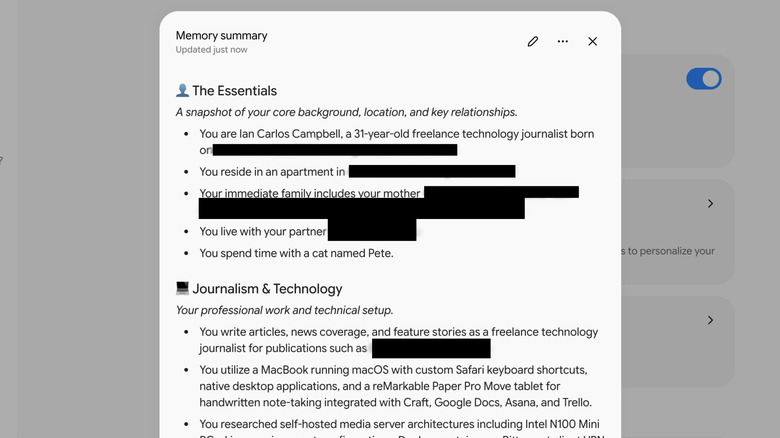
نافذة ملخص الذاكرة في قائمة إعدادات جيميني. إيان كارلوس كامبل لموقع Engadget

إذا كنت في الولايات المتحدة، ولديك خطة مدفوعة من جوجل AI وذاكرة مفعلة، يمكنك الوصول إلى ملخص ذاكرة جيميني لعرض ما جمعته عنك وتعديل هذه المعلومات حسب رغبتك. في تطبيق جيميني على الويب، انقر على زر الإعدادات (رمز الترس) في الزاوية السفلية اليسرى، ثم انقر على الذكاء الشخصي ثم ملخص الذاكرة. بعد ذلك، ستقوم جيميني بإنشاء قائمة منقطة بالتفاصيل الرئيسية التي جمعتها عنك، مصنفة في فئات تركز على أشياء مثل بياناتك الشخصية ومعلومات مهنتك ومصالحك المختلفة. كما أنها تعرف أسماء حيواناتك الأليفة أيضًا.

يمكنك التوقف عند هذا الحد إذا كنت تهتم فقط بما تعرفه جيميني، أو يمكنك تعديل ذاكرة الذكاء الاصطناعي بالنقر على زر تعديل (رمز القلم) في الزاوية العلوية اليمنى من نافذة ملخص الذاكرة. في وضع التحرير، يمكن إعادة كتابة أي سطر في الملخص أو حذفه، تمامًا مثل مستند جوجل. إذا كنت تفضل إرشاد جيميني لإجراء إضافات أو طرح عناصر، يمكنك بدلاً من ذلك إدخال إرشاد عبر صندوق النص الموجود في أسفل النافذة. بمجرد أن تكون راضيًا عن تغييراتك، يمكنك النقر على حفظ لتسجيلها في ذاكرة جيميني. تحفظ جيميني أيضًا تاريخ الذاكرة لهذه التغييرات ووقت إجرائها. لذا، في حين أنه يمكنك بسهولة تعديل خطتك الزمنية الشخصية كما تتعلق بحقيقة جيميني، سيتم تتبع أي تعديلات.

كيفية إيقاف أو الحد من ذاكرة جيميني
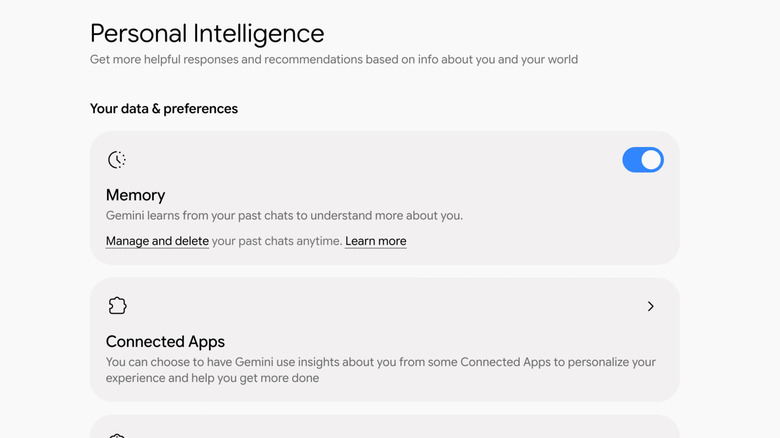
مفتاح تبديل الذاكرة في قائمة الذكاء الشخصي لجيميني. يان كارلوس كامبل لموقع Engadget

إذا كنت تفضل إيقاف نظام الذاكرة بالكامل بدلاً من مجرد تحريره، يمكنك القيام بذلك عن طريق النقر على مفتاح التبديل الذاكرة في قائمة الذكاء الشخصي. سيؤدي إلغاء تحديد المفتاح إلى منع جيميني من تسجيل حقائق جديدة في الذاكرة، ولكنه لا يحذف الأشياء القديمة التي تعلمها. يمكنك تحرير هذه التفاصيل باستخدام ملخص الذاكرة، أو حذف المحادثات تمامًا من قائمة الأنشطة.

لحذف المحادثات، انتقل إلى تطبيق جيميني على الويب، وانقر على الإعدادات ثم اختر النشاط. من قائمة النشاط، يمكنك التمرير خلال التفاعلات التي أجريتها مع جيميني حسب التاريخ وحذف أي منها ترغب في حذفه بالنقر على "X" بجانبه. يؤدي حذفها إلى إزالة تلك المحادثات من مجموعة السياق التي تستخدمها جيميني لتخصيص ردودها.

من خلال دمج كل هذه الخيارات، يمكنك ممارسة مزيد من السيطرة على ما تعرفه الذكاء الاصطناعي لجوجل وكيفية استجابتها لمدخلاتك، والحصول في النهاية على مخرجات أكثر فائدة أثناء العملية.

googlegeminiai-memory
الخبر متوفّر باللغات التالية:English
المصدر الأصلي للخبر
إنجاجيت

You can now see and edit what Google Gemini remembers about you

November 18, 2026·Engadget
You can now see and edit what Google Gemini remembers about you

Editing the AI’s memory is one way you can shape its responses.

By Ian Carlos Campbell Nov. 17, 2026 7:00 pm EST mundissima/Shutterstock Add Engadget on Google: Google Discover

Besides the ability to connect and use other applications and services, a lot of AI assistants' utility comes from their capacity to shape their responses based on what they learn and remember about you. Google's Personal Intelligence feature allows Gemini to pull in context from Gmail, YouTube, Search and other Google apps, and the AI also builds out its memory based on your preferences and other personal facts that come up in chats. For example, if you share with Gemini that you're lactose intolerant, the bot will avoid recommending milk-based products.

Depending on what you share, Gemini's picture of you can be fairly intimate, which makes the ability to edit the AI's memory all the more important. If you're curious about what Gemini knows or you want to edit what the AI can draw from to personalize its responses, Google is rolling out a way to see and change Gemini's memory directly from the settings menu.

Gemini's two layers of memory

Google has two layers of settings for what you could call Gemini's memory, though the company only refers to one of them by that name. The first layer, the Keep Activity toggle, determines whether chats with Gemini are saved and associated with your Google Account. If you're 18 or older and you're logged into your personal account while using Gemini, the toggle is on by default. With Keep Activity enabled, whenever you sign in with your account you can pull up and re-engage past chats. If you disable it, chats won't be saved to your account, meaning they'll disappear after 72 hours and won't follow you across devices.

The second layer is what Google actually calls the AI's Memory. Using the content of past chats, Gemini is able to build out a profile of you that it can reference to personalize its responses. The AI isn't able to create any memories unless it can remember and access your inputs, so Keep Activity needs to be on for this to work. If it is, you may notice Gemini taking your preferences and personal information into account in its responses. That's the AI's memory at work.

How to view and edit Gemini's memory summary

The Memory summary windows in Gemini's Settings menu. Ian Carlos Campbell for Engadget

If you're in the US, have a paid Google AI plan and memory is on, you can access Gemini's memory summary to see what it's compiled about you and edit this information to your liking. In the Gemini web app, click the Settings button (the gear icon) in the bottom left corner, click Personal Intelligence and then click Memory summary. Gemini will then generate a bulleted list of the major details it's gleaned about you, sorted into categories focused on things like your personal data, career information and various interests. It tends to know your pets' names, too.

You can stop there if you only care about what Gemini knows, or you can tweak the AI's memory by clicking on the Edit button (the pen icon) in the top-right corner of the Memory summary window. In edit mode, any line in the summary can be rewritten or deleted, just like a Google Doc. If you'd prefer to prompt Gemini to make additions or subtractions, you can alternatively enter a prompt via the text box at the bottom of the window. Once you're happy with your changes, you can click Save to commit them to Gemini's memory. Gemini also saves a memory history of these changes and when they were made. So, while you can easily alter your personal timeline as it pertains to Gemini's reality, any adjustments will be tracked.

How to turn off or limit Gemini's memory

The Memory toggle in Gemini's Personal Intelligence menu. Ian Carlos Campbell for Engadget

If you'd prefer to turn off the memory system entirely rather than simply edit it, you can do so by clicking on the Memory toggle in the Personal Intelligence menu. Deselecting the toggle will stop Gemini from committing new facts to memory, but it doesn't delete old things it's learned. You can edit those details using the Memory summary, or delete chats completely from the Activity menu.

To delete chats, head to the Gemini web app, click Settings and then select Activity. From the Activity menu, you can scroll through interactions you've had with Gemini by date and delete whichever ones you'd like by clicking on the "X" next to them. Deleting them removes those chats from the context pool that Gemini uses to personalize its responses.

By combining all of these options, you can exert more control over what Google's AI knows and how it responds to your inputs, and ideally get more useful outputs in the process.

googlegeminiai-memory
This article is also available in:العربية
Original source article
Engadget