كيفية استخدام لوحة معلومات "كلود" للتفكير والتعلم متى حان وقت لمس العشب
19 يوليو 2026·إنجاجيت
كيفية استخدام لوحة معلومات "كلود" للتفكير والتعلم متى حان وقت لمس العشب

تنبيهات التوقف صديقك.

بقلم إيجور بونيفاسيتش 19 يوليو، 2026 2:30 مساءً أنثروبيك

يمكن أن يكون مساعد كلود من شركة أنثروبيك أداة إنتاجية رائعة، ولكن مثل أي تجربة رقمية، من الممكن الإفراط في استخدامها إلى حد يبدأ فيه التأثير سلبًا على حياتك. لمساعدة المستخدمين على فهم أفضل لكم الوقت الذي يقضونه مع كلود، وتعزيز علاقة أكثر وعيًا بالتكنولوجيا، أطلقت شركة أنثروبيك مؤخرًا "ريفليكت"، وهو لوحة تحكم جديدة داخل قائمة إعدادات المساعد تدمج بين ميزة "سبوتيفاي وراب" وأداة "وقت الشاشة" من آبل. في هذا الدليل، سأشرح كيفية استخدام الأداة لفرض حدود على استخدامك لمساعد كلود.

كيفية إعداد تذكيرات فترات الراحة وساعات الهدوء
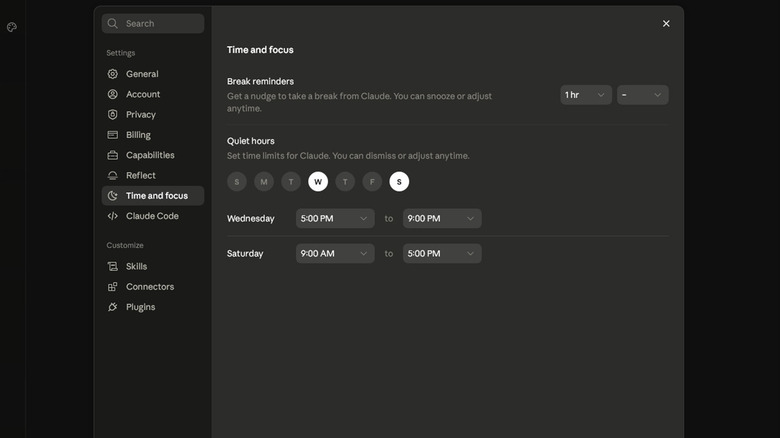
لقطة شاشة من قائمة وقت و تركيز كلود حيث يمكنك إعداد تذكيرات فترات الراحة وساعات الهدوء. إيجور بونيفاسيك لموقع Engadget

أولاً، ترغب في الوصول إلى لوحة المعلومات وإنشاء تقريرك الأول من رفليكت. للقيام بذلك، اتبع الخطوات التالية:

  1. افتح متصفحك وتوجه إلى claude.ai.

  2. انقر على اسمك وصورة ملفك الشخصي.

  3. انقر على الإعدادات.

  4. اختر رفليكت.

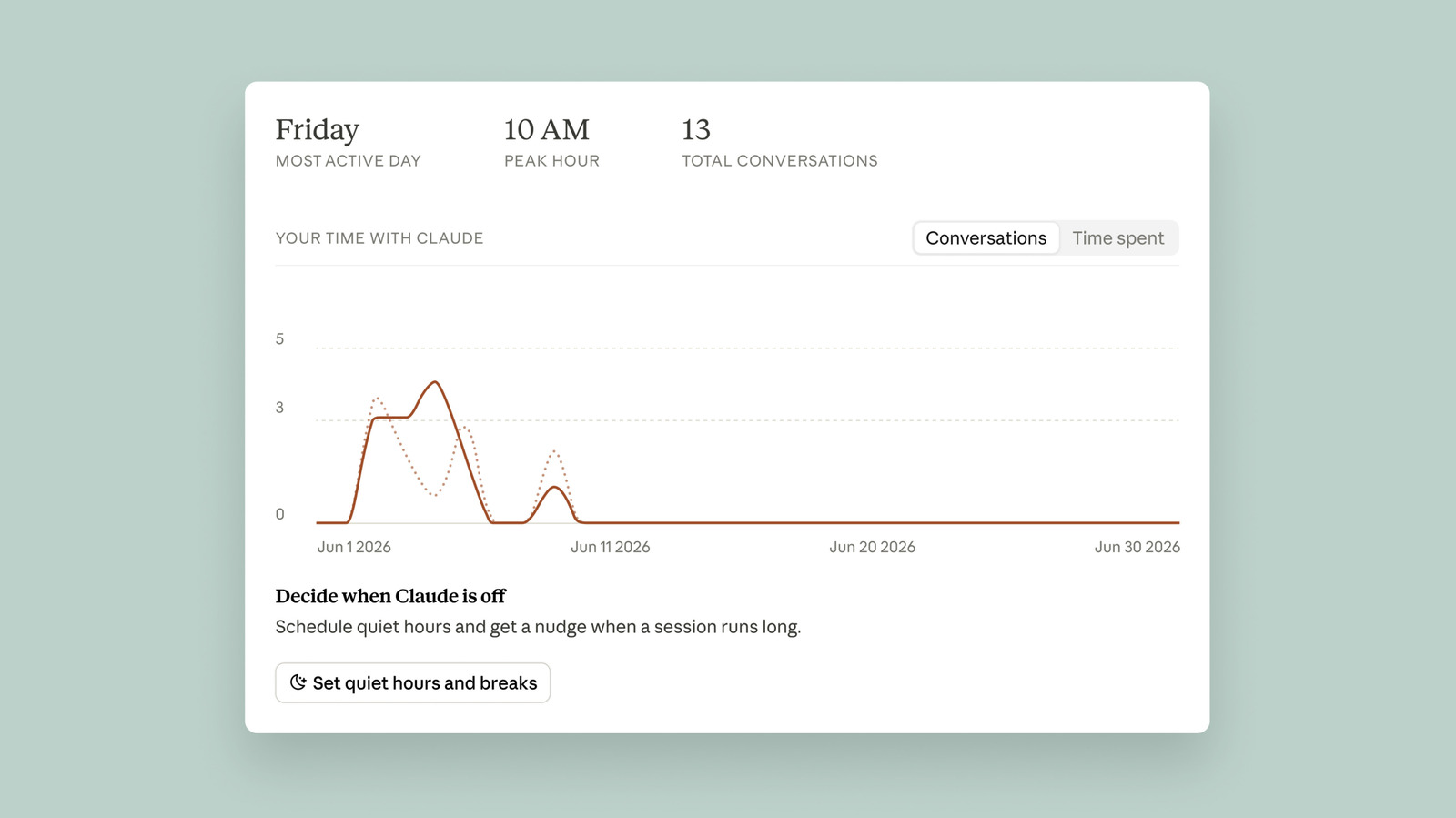
سيستغرق كلود لحظة لتوليد تقريرك. بشكل افتراضي، سيقوم الروبوت تلخيص آخر شهر من استخدامك، ولكن يمكنك أيضًا عرض الأشهر الثلاثة أو الستة أو الإثني عشر الماضية بالنقر على التبديل في الأعلى.

بمجرد جاهزية تقريرك الأول، سترى ملخصًا قصيرًا لمحادثاتك مع كلود. حتى وقت كتابة هذه المقالة، لا يمكنك رؤية المدة الدقيقة التي قمت بقضائها في استخدام كلود. إذا نقرت على علامة تبويب الوقت المنقضي، فستقول الصفحة فقط "سيتم إطلاقها قريبًا". قال رين لينثيكوم، رئيس سياسة الرفاهية في أنثروبيك، لموقع Engadget إن سبب ذلك هو أن الشركة لم يكن لديها نظام داخلي لقياس الوقت المنقضي على كلود عندما بدأت العمل على لوحة معلومات "ريفليكت" (Reflect dashboard).

في جميع الأحوال، يوفر لوحة القيادة لك طريقتين مختلفتين لإدارة وقتك على كلود. أولاً، يمكنك إعداد تذكيرات الاستراحة، والتي ستقوم الدردشة الآلية بإرسالها إليك في شكل تنبيه بعد استخدامك لها لفترة محددة من الوقت. يعتمد مقدار الوقت الذي يطلب منك فيه كلود أخذ استراحة على تقديرك. يمكنك تحديد التذكيرات لكل 15 أو 30 أو 45 دقيقة، أو كل بضع ساعات. بشكل منفصل، يمكنك إعداد ساعات الهدوء، المصممة لمنعك من استخدام كلود خلال ساعات معينة من اليوم. يمكنك تعيين ساعات مختلفة لكل يوم من أيام الأسبوع بشكل مستقل عن بعضها البعض. على سبيل المثال، يمكنك وضع حاجز في يوم الاثنين من الساعة 5 مساءً إلى 8 مساءً، بينما يمكنك إعدادها في يوم السبت من الساعة 12 ظهراً إلى 4 عصراً.

كما هو الحال مع أي أداة لوقت الشاشة، فإن الأمر يعود إليك في النهاية لاحترام حدود الاستخدام التي حددتها لنفسك حيث يمكنك تجاهل جميع تنبيهات كلود بحرية. إذا كنت ترغب في تعديل تذكيرات الاستراحة الخاصة بك، يمكنك القيام بذلك من قسم الوقت والتركيز في قائمة الإعدادات.

القسم الخاص بسلاسة كلود يُدرج توصيات حول كيفية استخدام الدردشة الآلية بشكل أكثر كفاءةأنثروبيك

هناك ميزة أخرى من لوحة التحكم سأسلط الضوء عليها هنا تتعلق بقسم سلاسة الذكاء الاصطناعي، والذي ستجده في أسفل الواجهة. تحت هذا القسم، سيقوم كلود بتوليد توصيات مصممة لتبسيط استخدام الدردشة الآلية. على سبيل المثال، إذا وجد كلود أنك تقوم بشكل متكرر بإعادة إنشاء السياق نفسه أو مشابه له عند كتابة سؤال أو طلب، فسيُوصي باستخدام ميزة المشاريع الخاصة به لتجميع محفزاتك معًا، بحيث لا تحتاج إلى تكرار نفسك كثيرًا. في تجربتي، ساعدني هذا الأداة على استخدام كلود بشكل أكثر ذكاءً. لذلك أنصح بتجربة بعض النصائح التي يولدها كلود.

ClaudeReflectdashboard
الخبر متوفّر باللغات التالية:English
المصدر الأصلي للخبر
إنجاجيت

How To use Claude's Reflect dashboard and learn when it's time to touch grass

July 19, 2026·Engadget
How To use Claude's Reflect dashboard and learn when it's time to touch grass

Break reminders are your friend.

By Igor Bonifacic July 19, 2026 2:30 pm EST Anthropic

Anthropic's Claude chatbot can be an incredible productivity tool, but like any digital experience, it's possible to overuse it to the point where it starts to negatively affect your life. To help users get a better sense of how much time they're spending with Claude, and nurture a more thoughtful relationship with its technology, Anthropic recently released Reflect, a new dashboard inside of the chatbot's settings menu that's a mix between Spotify Wrapped and Apple's Screen Time tool. In this guide, I'll go over how you can use the tool to put limits on your Claude usage.

How to set break reminders and quiet hours

A screenshot of Claude's Time and focus menu where you can set break reminders and quiet hours. Igor Bonifacic for Engadget

First, you'll want to access the dashboard and generate your first reflect report. To do so, follow these steps:

  1. Open your browser and navigate to claude.ai.

  2. Click on your name and profile photo.

  3. Click Settings.

  4. Select Reflect.

Claude will take a moment to generate your report. By default, the chatbot will summarize the last month of your usage, but you can also see the last three, six or 12 months by clicking the toggle at the top.

Once your first report is ready, you'll see a short summary of your conversations with Claude. As of the writing of this article, you can't see the exact amount of time you've spent using Claude. If you click the Time spent tab, the page just says "coming soon." Ryn Linthicum, Anthropic's head of wellbeing policy, told Engadget the reason for that is the company didn't have an internal system for measuring time spent on Claude when it began working on the Reflect dashboard.

In any case, the dashboard gives you two different ways to manage your time on Claude. First, you can set break reminders, which the chatbot will deliver in the form of a nudge after you use it for a set amount of time. After just how much time Claude prompts you to take a break, is up to you. You can set reminders for every 15, 30 or 45 minutes, or every few hours. Separately, you can set quiet hours, which are designed to prevent you from using Claude during certain hours of the day. You can set different hours for each day of the week independently of each other. So, for example, on Monday you can put up a roadblock from 5PM to 8PM, while on Saturday you can set it from 12PM to 4PM.

As with any screen time tool, it's ultimately up to you to honor the usage limits you've set for yourself since you can freely dismiss all of Claude's nudges. If you want to tweak your break reminders, you can do so from the Time and focus section of the settings menu.

Claude's fluency section lists recommendations on how you can use the chatbot more efficientlyAnthropic

One more feature of the dashboard I'll highlight here involves the AI fluency section, which you'll find toward the bottom of the interface. Under this section, Claude will generate recommendations designed to streamline your usage of the chatbot. For example, if Claude finds you frequently re-establish the same or similar context when you go to write a question or request, it will recommend you use its Projects feature to group your prompts together, so that you don't need to repeat yourself so often. In my testing, this tool has helped me use Claude smarter. So I recommend giving some of the tips Claude generates a try.

ClaudeReflectdashboard
This article is also available in:العربية
Original source article
Engadget