كيفية منع سيري من المقاطعة أثناء استخدام كار بلاي
23 أغسطس 2026·إنجاجيت
كيفية منع سيري من المقاطعة أثناء استخدام كار بلاي

لا تدع سيري تصبح مصدر إزعاج بدلاً من كونها مساعدًا؛ أبقها هادئة في السيارة لتقليل المشتتات.

بقلم بين ستيجنر 23 أغسطس، 2026 4:00 مساءً EST أدريان/شاترستوك

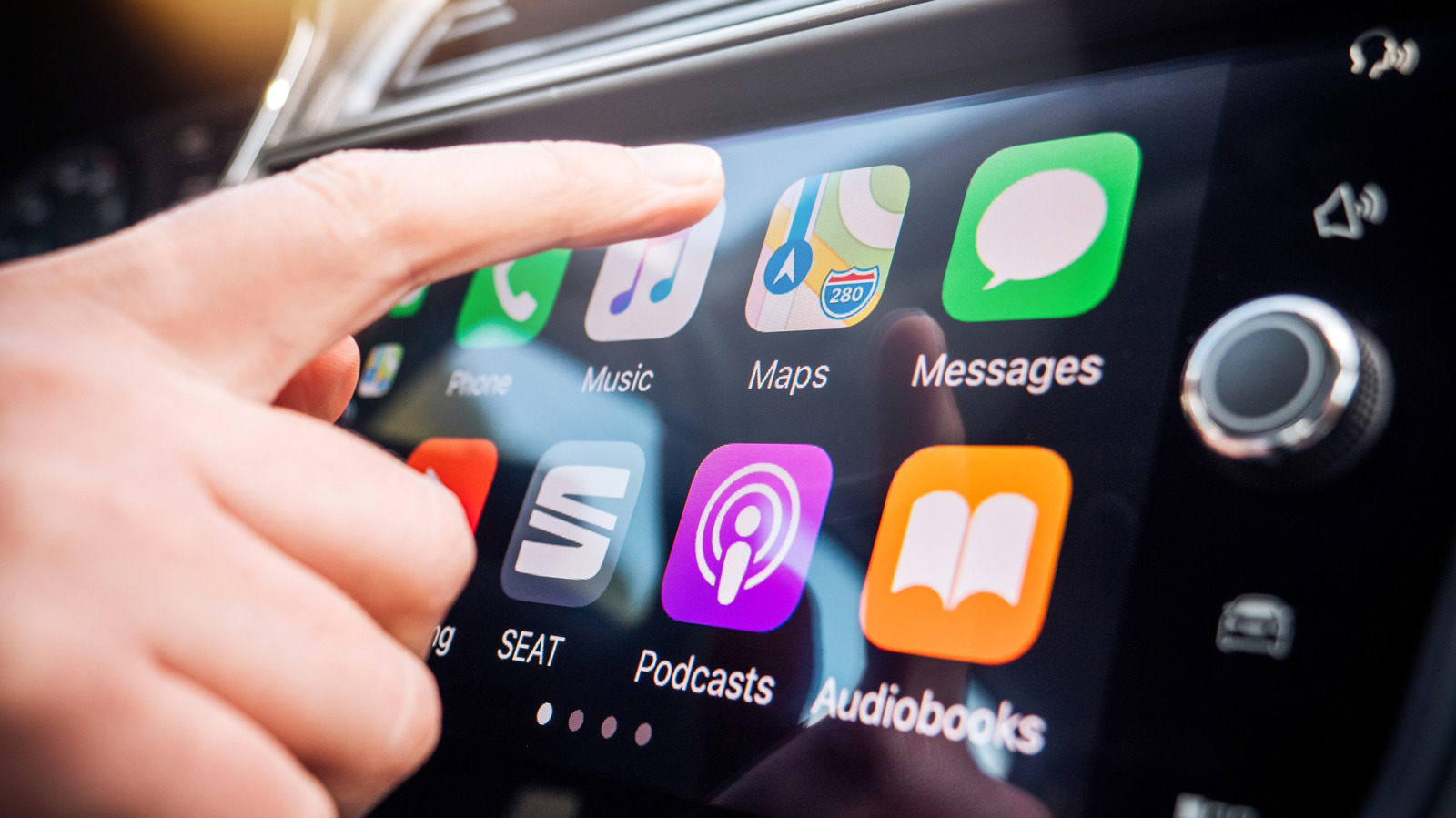
على الرغم من أن CarPlay يجعل استخدام ميزات هاتفك أثناء القيادة أكثر أمانًا، إلا أنه لا يزال يمكن أن يكون مشتتًا، مثل ظهور رسائل الدردشة الجماعية وفجأة جذب انتباهك. أحد أسوأ أشكال ذلك هو المقاطعة السمعية من سيري لما تقوم به.

إن سماع المساعد يتحدث باستمرار فوق موسيقاك أو بودكاستك أو محادثتك داخل السيارة مع الإعلانات أمر مزعج وربما خطير. قد تواجه أيضًا مشكلات في عدم قدرتها على سماعك بشكل صحيح أثناء التحدث إليها في السيارة. لحسن الحظ، يمكنك ضبط بعض الإعدادات، خاصة كيفية تفاعلك مع سيري، في محاولة لتجنب إهدار الوقت.

لا يمكنك تعطيل سيري تمامًا، حيث لن يعمل CarPlay دون تمكين الميزة. ومع ذلك، يمكنك جعل رحلات CarPlay أكثر سلاسة عن طريق إيقاف بعض العادات الأكثر إزعاجًا للمساعد. عندما قد يؤدي كل ثانية مشتتة على الطريق إلى حادث، فإن ضبط سيري حسب رغبتك هو طريقة مهملة للبقاء في أمان.

أهم مفتاح: قيادة التركيز
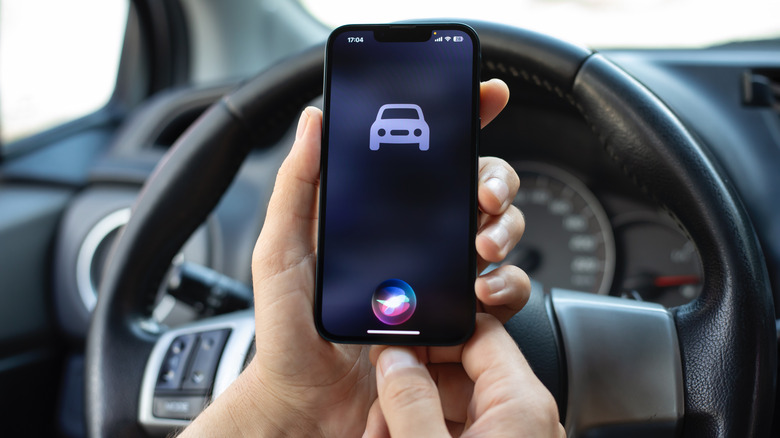
أيقونة سيارة تظهر على هاتف iPhone مع تنشيط سيري، أمام عجلة القيادة. DenPhotos/Shutterstock

الطريقة الأفضل لإسكات سيري أثناء القيادة هي استخدام وضع التركيز المناسب. أوضاع التركيز هي امتداد لوضع "لا مزعجات" الذي يخفي الإشعارات بناءً على حالتك، ويحتوي وضع القيادة على مفاتيح خاصة لتمكينه تلقائيًا في السيارة. مع تمكين ذلك، لن ترى سوى إشعارات الأشخاص الذين اخترتهم، مما يقلل من المقاطعات.

لإعداد ذلك، افتح الإعدادات واذهب إلى التركيز. إذا لم ترى القيادة، اضغط على أيقونة الزائد (+) في الزاوية العلوية اليمنى وأضفها. داخل تركيز القيادة، اختر الأشخاص. بالنسبة للقيادة، من المنطقي أكثر أن تسمح بقائمة قصيرة من الأشخاص لإعلامك. عندما يتصلون بك من أي تطبيق، بما في ذلك الرسائل وواتساب، ستظهر الإشعارات أثناء قيادتك. تسمح لك الأزرار الموجودة أسفلها بالتحكم في المكالمات الهاتفية التي تخطرك في مركبتك. الأشخاص فقط يهدئ المكالمات غير المرغوب فيها أثناء القيادة، أو يمكنك تقييدها إلى قائمتك المختارة باستخدام الأشخاص المسموح لهم فقط.

استخدم قسم الرد التلقائي لتعيين رسالة قصيرة ترسل إلى المجموعة التي تختارها إذا أرسل لك أحدهم رسالة نصية أثناء استخدام CarPlay. سيعلم الأشخاص أنك مشغول دون أن تُصدر رسالة كما تفعل أثناء القيادة.

أخيرًا، قم بالتمرير لأسفل واضغط على أثناء القيادة وتأكد من أن تنشيط مع CarPlay مفعّل. الخيارات الموجودة أعلاه مخصصة للسيارات التي لا تدعم CarPlay. الآن، أثناء استخدام CarPlay السلكي أو اللاسلكي، سترى أيقونة سيارة صغيرة أسفل الساعة، مما يخبرك بأن هذا التركيز قيد التشغيل.

إسكات سيري أثناء القيادة
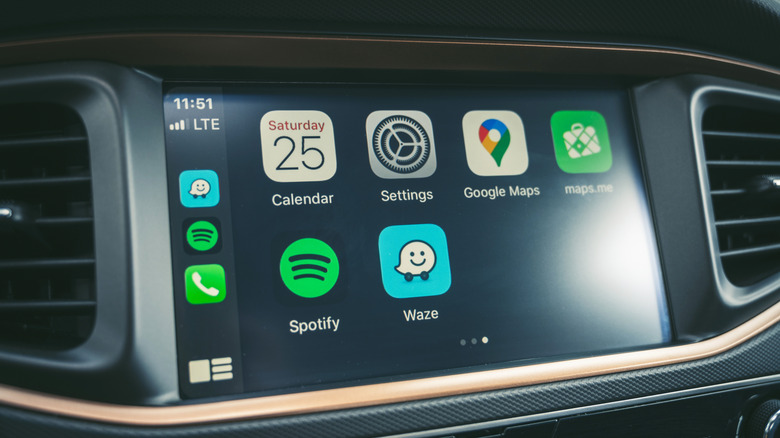
تطبيقات مختلفة على شاشة كار بلاي. A. Aleksandravicius/Shutterstock

قدرة سيري على الإعلان عن الإشعارات رائعة في الظروف المناسبة، ولكن إذا لم تتوقف عن إرسال التنبيهات أثناء القيادة، يمكنك تعطيل هذه الميزة. من خلال الإعدادات على هاتفك، اختر التنبيهات > الإعلان عن التنبيهات. إذا كنت ترغب في استخدام هذه الميزة خارج كار بلاي، قم بتشغيل التبديل العلوي وحدد قائمة كار بلاي. هناك، قم بتعطيل الإعلان عن الرسائل ولن تقرأ سيري أي شيء أثناء الرحلة.

في صفحة إعلانات الإشعارات، قد ترغب أيضًا في تشغيل الرد دون تأكيد. بشكل افتراضي، عندما تتحدث عن الرد، سيعيد المساعد ما قلته إليك للتأكد قبل إرساله. على الرغم من أن هذا يساعد على تجنب الرسائل غير المقصودة، إلا أنه يخلق أيضًا خطوات إضافية خلف عجلة القيادة. قم بتشغيل هذا التبديل ويصبح إرسال الرد خطوة واحدة.

هناك طريقة أخرى لمنع التوقف مع Siri مخفية تحت الإعدادات > سهولة الاستخدام > Siri > طلب "Siri" للإيقاف المؤقت على هاتفك. عادةً، ستتوقف Siri عما تقوله عندما تكتشف أنك تتحدث مرة أخرى. إذا كان هاتفك يقوم بذلك عن طريق الخطأ بسبب ضجيج الطريق أو أشخاص آخرين في السيارة، قم بتمكين هذا الخيار. بعد ذلك، لن تتوقف Siri عما تقوله ما لم تقل "Siri" لطلبها مرة أخرى. وبالمثل، إذا كانت تميل إلى التوقف عن الاستماع لأنك تستغرق وقتًا طويلاً في التفكير، قم بتغيير وقت توقف Siri إلى أطول أو الأطول لإعطاء نفسك المزيد من الوقت.

على الرغم من أن Siri مطلوبة لـ CarPlay، إلا أنه يمكنك إيقاف بعض أشكال تنشيطها. انتقل إلى الإعدادات > Apple Intelligence و Siri > تحدث مع Siri على هاتفك واختر إيقاف التشغيل في القائمة العلوية. بعد القيام بذلك، لن تتمكن من استدعاء Siri إلا عن طريق الضغط على زر الأمر الصوتي في عجلة القيادة أو الضغط المطول على زر الجانب في هاتفك. وفي بعض السيارات، سيؤدي استخدام مقبض الصوت (أو أزرار الصوت في الهاتف) أثناء حديثه إلى ضبط مستوى صوت Siri فقط، دون التأثير على الموسيقى أو غيرها من عمليات التشغيل. هذا يعتمد على مركبتك، ولكنه خدعة أخرى تستحق المحاولة إذا كنت ترغب في مزيد من التحكم.

تعطيل الإرشاد التنافسي
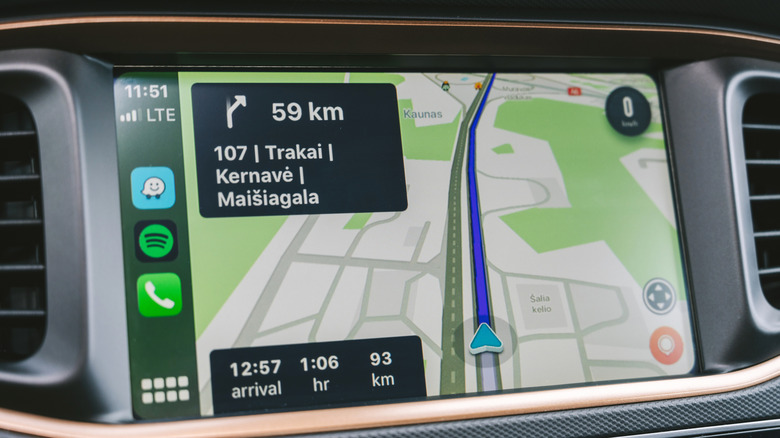
إرشادات التنقل في ويز على شاشة كار بلاي A. Aleksandravicius/Shutterstock

تساعدك الإرشادات المنطوقة في تطبيقات الملاحة على تجنب تفويت التقاطعات ولكنها أيضاً تقاطع ما تستمع إليه باستمرار. لحسن الحظ، من السهل تعطيل الإرشاد الصوتي في تطبيقات الملاحة الرئيسية أثناء استخدام كار بلاي، مما يتيح لك تخصيص ذلك لكل رحلة.

تقدم خرائط آبل وويز هذا التحكم بنفس الطريقة. انقر على الشاشة أثناء التنقل لعرض الأزرار، ثم اضغط على أيقونة المكبر، والتي توفر خيارًا بين الإرشاد الكامل، والتنبيهات فقط، والصمت التام. إن سماع التنبيهات فقط هو توازن جيد، حيث أن الطرق الأسرع أو حالات التباطؤ القادمة مهمة وتحدث أقل بكثير من التقاطعات.

بالنسبة لخرائط جوجل، ستحتاج إلى فتح التطبيق على هاتفك، والنقر على صورة ملفك الشخصي في الزاوية العلوية اليمنى، واختيار الإعدادات > الملاحة. قم بتمكين تنبيهات التشغيل حتى أثناء الصمت. في القائمة نفسها، ضع في الاعتبار ضبط حجم الإرشادات للتنبيهات إذا كانت تزعجك. بالنسبة لخيار مشابه في خرائط آبل، قم بزيارة الإعدادات > التطبيقات > الخرائط > الاتجاهات المنطوقة لتخفيف حجم الصوت. قد ترغب أيضًا في إيقاف تشغيل تعليق صوت الاتجاهات; يضمن ذلك استمرار البودكاست والكتب الصوتية في التشغيل حتى أثناء قراءة الاتجاهات بصوت عالٍ.

نأمل أن تجعل عملية إعادة تصميم الذكاء الاصطناعي لسيري المساعد أكثر ذكاءً حتى لا نضطر إلى تحمل هذه المتاعب.

SiriCarPlaydistraction
الخبر متوفّر باللغات التالية:English
المصدر الأصلي للخبر
إنجاجيت

How to stop Siri from interrupting while you're using CarPlay

August 23, 2026·Engadget
How to stop Siri from interrupting while you're using CarPlay

Don’t let Siri become a hassle instead of an assistant; keep it quiet in the car to reduce distractions.

By Ben Stegner Aug. 23, 2026 4:00 pm EST Hadrian/Shutterstock

Even though CarPlay makes it safer to use your phone's features while driving, it can still become distracting, like when group chat messages pop up and grab your attention. One of the worst forms of this is Siri audibly interrupting what you're doing.

Hearing the assistant constantly talk over your music, podcast, or in-car conversation with announcements is annoying and potentially dangerous. You might also have issues with it not properly hearing you as you're speaking to it in the car. Thankfully, you can adjust a few settings, particularly how you interact with Siri, in an effort to avoiding wasting time.

You can't completely disable Siri, since CarPlay won't work without the feature enabled. However, you can make your CarPlay drives smoother by turning off some of the assistant's most obnoxious tendencies. When every distracted second on the road could lead to an accident, tweaking Siri to your liking is an overlooked way to stay safe.

The most important toggle: Driving Focus

A car icon showing on an iPhone with Siri activated, in front of a steering wheel. DenPhotos/Shutterstock

The best way to hush Siri while you're driving is to use the applicable Focus mode. Focus modes are an extension of Do Not Disturb that suppress notifications depending on your situation, and the Driving mode has special toggles to enable automatically in the car. With this enabled, you'll only see alerts from people you choose, cutting down on interruptions.

To set it up, open Settings and go to Focus. If you don't see Driving, tap the Plus (+) icon at the top-right and add it. Inside the Driving focus, choose People. For driving, it makes more sense to Allow a short list of people to alert you. When they contact you from any app, including Messages and WhatsApp, alerts will show as you drive. The toggles below let you control which phone calls notify you in your vehicle. Contacts Only silences spam calls while driving, or you can limit it to your chosen list with Allowed People Only.

Use the Auto-Reply section to set a short message that goes to the group you select if they text you when you're using CarPlay. People will know you're busy without you dictating a message as you drive.

Finally, scroll down to tap While Driving and make sure Activate With CarPlay is on. The options above this are for cars that don't support CarPlay. Now, while in wired or wireless CarPlay, you'll see a small car icon underneath the clock, letting you know this Focus is on.

Keep Siri quiet in the car

Various apps on a CarPlay screen. A. Aleksandravicius/Shutterstock

Siri's ability to speak notifications is great in the right circumstances, but if it won't shut up about incoming alerts in the car, you can turn this off. Back in Settings on your phone, choose Notifications > Announce Notifications. If you want to use this feature outside of CarPlay, keep the top toggle on and select the CarPlay menu. There, disable Announce Messages and Siri won't read anything that comes in during a trip.

Back on the Announce Notifications page, you might also want to turn on Reply Without Confirmation. By default, when you speak a reply, the assistant will read what you said back to you for confirmation before sending. While this helps avoid misspoken messages, it also creates extra steps behind the wheel. Turn this toggle on and sending a reply becomes a single step.

Another way to prevent stoppages with Siri is hidden under Settings > Accessibility > Siri > Require "Siri" for Interruptions on your phone. Normally, Siri will stop what it's saying when it detects you talking back. If your phone is doing this in error because of road noise or other people in the car, enable this option. Then, Siri won't stop what it's saying unless you say "Siri" to prompt it again. Similarly, if it tends to stop listening because you take too long to think, change Siri Pause Time to Longer or Longest to give yourself more time.

Although Siri is required for CarPlay, you can still turn off some forms of its activation. Go to Settings > Apple Intelligence & Siri > Talk to Siri on your phone and choose Off in the top menu. After doing this, you'll only be able to summon Siri by hitting the voice command button on your steering wheel or holding the Side button on your phone. And in some cars, using the volume knob (or your phone's volume buttons) when it's talking will adjust the volume for Siri only, while not affecting music or other playback. This depends on your vehicle, but is another trick worth a try if you want more control.

Disable navigation guidance

Navigation directions in Waze on a CarPlay screen A. Aleksandravicius/Shutterstock

Spoken directions in navigation apps help you avoid missing turns but also constantly interrupt what you're listening to. Thankfully, it's easy to disable audio guidance in major GPS apps while using CarPlay, letting you customize this per-trip.

Apple Maps and Waze offer this control in the same way. Tap the screen during navigation to show buttons, then hit the speaker icon, which gives the choice between full guidance, alerts only, and complete silence. Hearing alerts only is a good balance, since faster routes or upcoming slowdowns are important and happen far less often than turns.

For Google Maps, you'll need to open the app on your phone, tap your profile picture at the top-right, and choose Settings > Navigation. Enable Play alerts even while muted. On the same menu, consider adjusting the Guidance volume of alerts if they annoy you. For a similar option in Apple Maps, visit Settings > Apps > Maps > Spoken Directions to soften the Voice Volume. You might also wish to turn off Directions Pause Spoken Audio; this keeps podcasts and audiobooks playing even as directions are read aloud.

Hopefully, Siri's upcoming AI overhaul makes the assistant smarter so we don't have to put up with these hassles.

SiriCarPlaydistraction
This article is also available in:العربية
Original source article
Engadget