ما الفرق بين وضع "عدم الإزعاج" و"التركيز" في آيفون؟
12 سبتمبر 2026·إنجاجيت
ما الفرق بين وضع "عدم الإزعاج" و"التركيز" في آيفون؟

لجهاز iPhone طرق أكثر لإسكات الإشعارات مما تدركه.

بقلم فيليبي إيسبوسيتو 12 سبتمبر 2026 6:30 مساءً بتوقيت شرق الولايات المتحدة فيليبي إيسبوسيتو لموقع Engadget أضف Engadget إلى Google: Google Discover

يمكن أن تصبح الإشعارات مزعجة للغاية، خاصة خلال الاجتماعات أو عند النوم. الأخبار الجيدة هي أن جهاز iPhone لديك لديه العديد من الطرق لإسكاتها وقمعها: وضع عدم الإزعاج، وأنماط التركيز، وبطبيعة الحال الوضع الصامت الكلاسيكي.

عند تفعيل الوضع الصامت، تظهر الإشعارات لا تزال، لكن هاتفك لن يصدر أي صوت (على الرغم من أنه قد يرتجف). في وضع عدم الإزعاج، لا تظهر الإشعارات في المقام الأول. وأنماط التركيز تشبه وضع عدم الإزعاج على الستيرويد - قابلة للتخصيص للغاية لحالات محددة، مثل العمل أو النوم. يحتوي نظام iOS على بعض أنماط التركيز المحددة مسبقًا، بالإضافة إلى إمكانية إنشاء أنماطك الخاصة.

من الجدير بالذكر أن هذه الميزات ليست جديدة. تم تقديم وضع عدم الإزعاج لأول مرة مع نظام iOS 6، وهو يقوم بمهمة واحدة: إسكات جميع الإشعارات الخاصة بك تمامًا. لن ترى أي لافتات أو مكالمات أو تنبيهات عند تشغيله. يعمل بشكل جيد عندما لا تريد حقًا أن يصرفك هاتفك. لكن وضع عدم الإزعاج قد يكون صارمًا للغاية عندما ترغب في تلقي تنبيهات مهمة، مثل المكالمات من عائلتك. لهذا السبب قدمت آبل التركيز مع نظام iOS 15.

كيفية إعداد وضع التركيز و”لا مزعجات” على آيفون
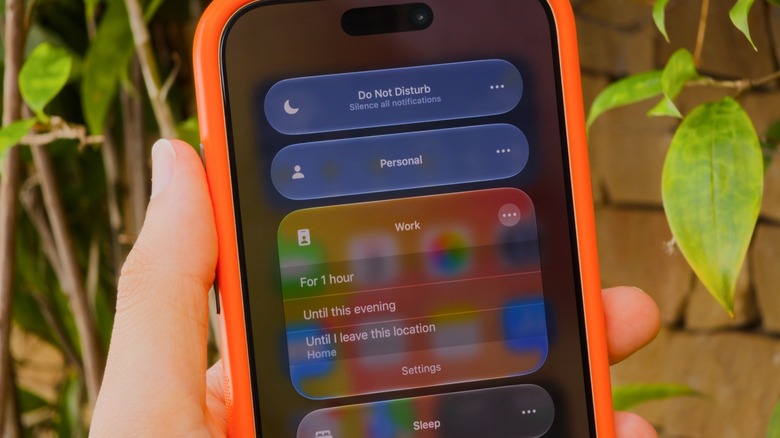
مركز التحكم في الآيفون يعرض بعض أوضاع التركيز الافتراضية: لا مزعجات، شخصي، عمل ونوم. فيليبي إيسبوسيتو لموقع Engadget

يمكن الوصول إلى وضع “لا مزعجات” ووضع التركيز من خلال مركز التحكم على الآيفون عن طريق السحب من الزاوية العلوية اليمنى للشاشة. أما إذا كنت لا تزال تستخدم آيفون يحتوي على زر المنزل، فيمكنك الرفع من الأسفل بدلاً من ذلك. انقر على زر التركيز لعرض جميع الخيارات المتاحة: وضع “لا مزعجات” الكلاسيكي، بالإضافة إلى أوضاع شخصي وعمل ونوم. لتعديل وضع معين، انقر على ثلاث نقاط، ثم الإعدادات.

إذا لم تستخدم التركيز (فوكوس) من قبل، ستحتاج إلى إعداده أولاً. هذا ما يجعل هذه الميزة قوية للغاية: في إعداداتها (الإعدادات > التركيز)، يمكنك اختيار التطبيقات والأشخاص الذين يُسمح لهم بإعلامك عند تشغيل وضع معين. لنفترض أنك في وضع "التركيز أثناء العمل"، حيث تسمح فقط بإشعارات التطبيقات مثل سلاك (Slack) والبريد الإلكتروني، بينما يتم إسكات جميع الإشعارات الأخرى. ينطبق الشيء نفسه على الأشخاص؛ يمكنك التحكم فيما إذا كنت تتلقى مكالمات أو رسائل من جهات اتصال محددة.

لإعداد هذه الإعدادات، انقر على الأشخاص أو التطبيقات أثناء وجودك داخل خيارات التركيز. يمكنك اختيار السماح بإشعارات من أو إسكات إشعارات من القائمة التي أنشأتها - أيهما أكثر منطقية لهذا التركيز. تحت التطبيقات، تأكد من تمكين الإشعارات الحساسة للوقت حتى تتلقى الإشعارات المهمة مثل التذكيرات أو المنبهات أو أحداث التقويم. يمكنك أيضًا تخصيص وضع التركيز عن طريق تطبيق الفلتر والتفعيل الذكي. بالتأكيد يستحق الأمر قضاء بعض الوقت في استكشاف جميع الخيارات المتاحة، نظرًا لما يمثله التركيز من أداة رائعة للإنتاجية.

كما قد تلاحظ، "لا مزعجات" (دو نوت ديسترب) هو تركيز خاص به، مما يعني أنه قابل للتخصيص مثل البقية. قد ترغب في السماح بإشعارات من زوجتك حتى أثناء وضع "لا مزعجات"، ربما.

وضعيات التركيز الذكية قبل النوم وقبل القيادة
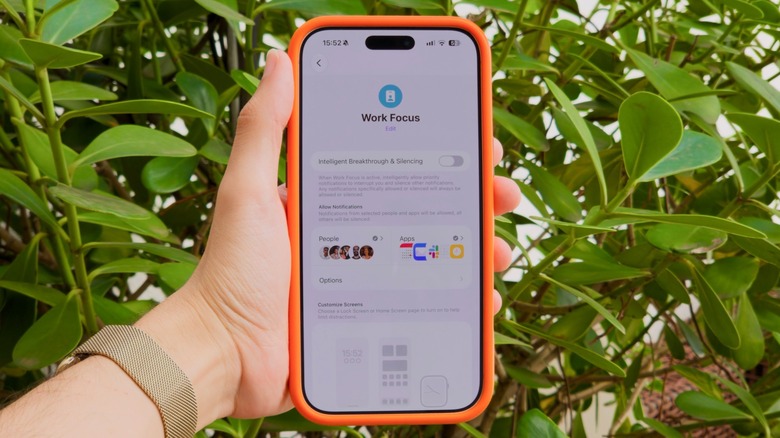
تخصيص وضعية التركيز للعمل في تطبيق إعدادات الآيفون. فيليبي إسبوسيتو لموقع Engadget

يمكنك تبديل وضعيات التركيز يدويًا من مركز التحكم في أي وقت، ولكن يمكن لجهاز الآيفون أيضًا تشغيلها تلقائيًا. على سبيل المثال، هناك وضعية النوم للتركيز والتي يتم تشغيلها عندما يحين وقت النوم. وهي تعتمد على جدول نومك في تطبيق الصحة، مما يعني أنه لا حاجة لتشغيلها يدويًا كل ليلة. يعمل وضع التركيز أثناء القيادة بشكل مماثل، حيث يتم تشغيله عند توصيل الآيفون بـ CarPlay للمساعدة في تقليل المشتتات أثناء القيادة.

إذا كان لديك تمكين الذكاء من آبل، فهناك أيضًا التركيز الخاص تقليل المقاطعات. يستخدم هذا الذكاء الاصطناعي لتحديد الإشعارات التي قد تكون مهمة والتي ليست كذلك. نظرًا لأن هذا يقوم بكل العمل نيابة عنك، فهو تركيز جيد لتجربته أولاً. إذا كنت ترغب في إنشاء تركيز خاص بك من الصفر، انقر على تركيز جديد في أسفل لوحة مركز التحكم، أو اضغط على زر الزائد (+) تحت الإعدادات > التركيز. أعطِ الوضع الجديد اسمًا ورمزًا، ثم قم بتخصيصه مثل أي من الآخرين.

افتراضيًا، سيرى أي شخص يتصل بك عبر iMessage إشعارًا صغيرًا بأن لديك تركيزًا مُفعلاً. أثناء تفعيل أي وضع للتركيز، سيتم قمع بعض الإشعارات أو كلها وفقًا للطريقة التي قمت بإعدادها. ستتلقى هذه الرسائل والبريد الإلكتروني والإشعارات الأخرى؛ لكنك لن تتلقى إشعارات لها. عندما ترغب في أن تخطرك الإشعارات مرة أخرى بشكل طبيعي، قم بتعطيل التركيز.

iPhoneDo Not DisturbFocus modes
الخبر متوفّر باللغات التالية:English
المصدر الأصلي للخبر
إنجاجيت

What's the difference between your iPhone's Do Not Disturb and Focus modes?

September 12, 2026·Engadget
What's the difference between your iPhone's Do Not Disturb and Focus modes?

Your iPhone has more ways to silence notifications than you realize.

By Filipe Espósito Sept. 12, 2026 6:30 pm EST Filipe Espósito for Engadget Add Engadget on Google: Google Discover

Notifications can get really annoying, especially during a meeting or at bedtime. The good news is that your iPhone has plenty of ways to silence and suppress them: Do Not Disturb, Focus modes and, of course, the classic silent mode.

While silent mode is active, notifications still appear, but your phone won't make any noise (though it might vibrate). In Do Not Disturb, notifications don't show in the first place. And Focus modes are like Do Not Disturb on steroids — highly customizable for specific situations, like work or sleep. iOS has some predefined Focus modes, plus you can create your own.

It's worth noting that these features aren't new. Do Not Disturb was first introduced with iOS 6, and it has a single job: fully silencing all your notifications. You won't see any banners, calls or alerts when it's turned on. It works well when you really don't want your phone distracting you. But Do Not Disturb can be too strict when you still want to receive important alerts, like calls from your family. That's why Apple introduced Focus with iOS 15.

Setting up Focus modes and Do Not Disturb on iPhone

iPhone Control Center showing some of the default Focus modes: Do Not Disturb, Personal, Work and Sleep. Filipe Espósito for Engadget

Do Not Disturb and Focus live in your iPhone's Control Center, accessible by swiping down from the top-right corner of your screen. If you're still rocking an iPhone with a Home button, slide up from the bottom instead. Tap the Focus button and you'll see every available option laid out: classic Do Not Disturb, plus Personal, Work and Sleep. To tweak a specific mode, tap the three dots, then Settings.

If you've never used a Focus before, you'll need to set it up first. That's what makes this feature so powerful: in its settings (Settings > Focus), you can choose which apps and people are allowed to notify you when a mode is on. Let's say in the Work Focus, you only allow notifications from apps like Slack and Mail, while all others are silenced. The same goes for people; it's in your control whether calls or messages from specific contacts notify you.

To set these up, tap People or Apps while inside a Focus's options. You can choose to Allow or Silence Notifications From the list you created — whichever makes more sense for that Focus. Under Apps, be sure to enable Time Sensitive Notifications so you still receive important alerts like reminders, alarms or calendar events. You can also customize a Focus mode by applying Filters and Smart Activation. It's definitely worth taking the time to check out all the available options, given what a great productivity tool Focus is.

As you may notice, Do Not Disturb is its own Focus, meaning it's customizable like the rest. You might wish to allow alerts from your spouse even in Do Not Disturb, perhaps.

Smart Focus modes for bedtime and driving

Customizing the iPhone's Work Focus mode in the Settings app. Filipe Espósito for Engadget

You can toggle focus modes manually from Control Center anytime, but your iPhone can also trigger them automatically. For example, there's a Sleep Focus that turns on when it's time to go to bed. It's based on your sleep schedule in the Health app, meaning there's no need to turn it on manually every night. Driving works similarly, as it turns on when your iPhone connects to CarPlay to help reduce distractions on the road.

If you have Apple Intelligence enabled, there's also the special Reduce Interruptions Focus. This uses AI to figure out which notifications might be important and which aren't. Because this does all the work for you, it's a good Focus to try first. If you'd like to create your own Focus from scratch, tap New Focus at the bottom of the Control Center panel, or hit the Plus (+) button under Settings > Focus. Give your new mode a name and icon, then customize it like any of the others.

By default, anyone who contacts you via iMessage will see a small notice that you have a Focus turned on. While any Focus mode is active, some or all notifications will be suppressed following the way you've set it up. You'll still receive these messages, emails and other notifications; you just won't get pings for them. When you want notifications to alert you normally again, turn the Focus off.

iPhoneDo Not DisturbFocus modes
This article is also available in:العربية
Original source article
Engadget