منفذ USB-C ليس ضمانًا لسرعات عالية: إليك السبب

6 يوليو 2026·إنجاجيت
منفذ USB-C ليس ضمانًا لسرعات عالية: إليك السبب

USB-C وعدت بالبساطة، لكنها تحولت إلى صندوق غامض من المواصفات المختلفة.

بقلم ماكس ميلر في ٦ يوليو ٢٠٢٦ ١١:٣٠ ص EST zoff/Shutterstock

USB-C حسنت بشكل ملحوظ طريقة استخدامنا للأجهزة. نوع منفذ عالمي واحد لقيادتها جميعًا، إنه الآن المعيار الفعلي للأجهزة الحديثة، وقادر على نقل البيانات وتوصيل الطاقة وحتى إخراج الفيديو. الجيل الأخير والأسرع من USB، USB4، قادر على معدلات نقل ثنائية الاتجاه تصل إلى ٨٠ جيجابت في الثانية (Gbps). لوضع ذلك في منظور، يمكنك نقل ١٠٠ جيجابايت في أقل من ١٠ ثوانٍ عند تلك السرعة.

لكن لا تختار جهازًا مزودًا بـ USB-C بشكل عشوائي متوقعًا أن يكون سريعًا للغاية. USB-C ليست مواصفة واحدة. بل هي غلاف لأحد المواصفات المختلفة، بدءًا من تلك التي كانت موجودة عندما ظهر المنفذ لأول مرة في عام ٢٠١٤ إلى أحدث المعايير في عام ٢٠٢٦. عند اختيار جهاز USB-C بشكل عشوائي، قد تنتهي بك الحال بمنفذ USB4 قوي، ولكن قد تنتهي بك الحال أيضًا مثقلًا بتوصيل أبطأ بكثير من USB 2.0. حتى أفضل محول USB-C الذي نوصي به في عام ٢٠٢٦ يصل إلى USB 3.1.

قدمت شركة آبل مؤخرًا لنا مثالًا مثاليًا على هذا عدم القدرة على التنبؤ مع أحدث أجهزتها المحمولة، ماك بوك نيو. يعد الجهاز نيو جهازًا منخفض التكلفة والذي تم طرحه بسعر 600 دولار (وقد شهد منذ ذلك الحين ارتفاعًا في السعر ليصل إلى 700 دولار). وللتوصل إلى نقطة السعر التنافسية هذه، قدمت آبل بعض التنازلات، وكان أحد هذه التنازلات تضمين منفذ USB 2.0 الأضعف القادر على نقل البيانات بسرعة 480 ميجابت في الثانية فقط، جنبًا إلى جنب مع منفذ USB 3.2 Gen 2 الأقوى قليلًا والقادر على نقل البيانات بسرعة 10 جيجابت في الثانية. ومع ذلك، فإن كلا المنفذين من نوع USB-C ويبدوان متطابقين بصريًا.

إذن، كيف أصبح هذا المنفذ الذي يبدو بسيطًا للغاية من الخارج معقدًا للغاية داخليًا، وكيف يمكنك تحديد القدرات الفعلية لأجهزة USB-C الخاصة بك؟ إليك ما تحتاج إلى معرفته.

كيف أصبحت منفذ USB-C فوضوية إلى هذا الحد
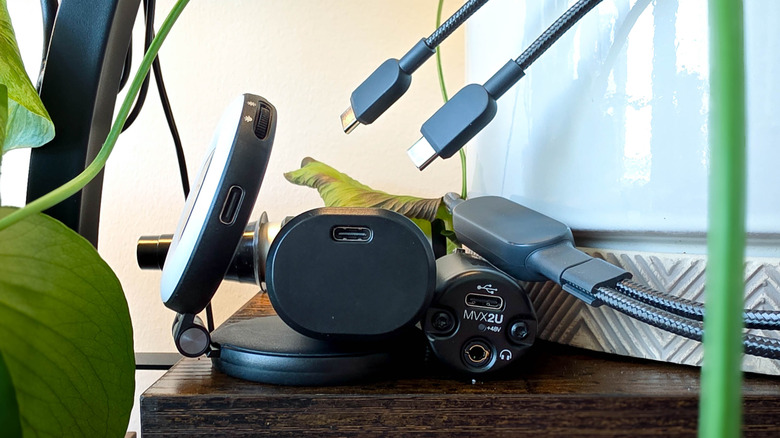
مجموعة متنوعة من الأجهزة المزودة بمنفذ USB-C ماكس ميلر لموقع Engadget

كان المقصود من USB-C أن تكون بسيطة. عندما وصلت في عام 2014، كان المستهلكون يعيشون وسط برج بابل من معايير الاتصال. كانت أجهزة الكمبيوتر الخاصة بك مزودة بمنفذ USB Type-A، ولكن الطابعة الخاصة بك كانت مزودة بنوع B، بينما كان لدى هاتفك الأندرويد أحد منفذي Micro USB الفريدين. في الوقت نفسه، كان لديك مشغل الآيبود الخاص بك منفذ Apple 30-pin أو Lightning connector، وقد يكون لديك كاميرا فيديو مزودة بمنفذ barrel connector للشحن. كان إخراج الفيديو بحاجة إلى DisplayPort أو HDMI، وهكذا. كانت فوضوية، وأشك أنني أثارت بعض الذكريات الحربية لدى القراء بإحضارها.

على النقيض من ذلك، كانت USB-C بسيطة. كان صغيرًا بما يكفي ليناسب أي جهاز، ويمكن عكس اتجاهه بحيث يمكنك توصيله بالطريقة الخاطئة، وكان حلًا واحدًا لجميع مشاكل الشحن ونقل البيانات والاتصال بالأجهزة الطرفية وإخراج الفيديو. كابل واحد هو كل ما تحتاجه، وسينعم العالم أخيرًا بالسلام.

لكن هذا الحلم الأوّلي تحطم بسبب حقيقتين لا مفر منهما: تطور معايير الاتصال، وكون الشركات التكنولوجية بخيلة في حساب الهوامش. لم يستطع اتحاد USB-IF، وهو المجموعة التي تنفذ معايير USB، أن يُلزم الشركات بتصنيع أجهزة USB-C الخاصة بها وفقًا لأحدث المواصفات، لذا أصبح من النادر جدًا العثور على منفذ أو كابل USB-C قادر على القيام بكل ما يمكن للمُحَوِّل (الموصل) القيام به. في الوقت نفسه، أصبحت مراجعات مواصفات USB معقدة بشكل متزايد خلال سنوات USB 3.x، حتى وصلنا إلى نقطة أصبح فيها USB 3.2 Gen 2x2 أسرع مرتين من USB 3.2 Gen 2 الذي يحمل اسمًا مشابهًا تقريبًا. استغلّت الشركات الأصلية (OEMs) الارتباك لبيع أجهزة USB-C باستخدام لغة تسويق USB 3 العامة.

دفعت شركات أخرى بأسلاك الشحن فقط، أو أسلاك البيانات الأساسية التي تعمل بسرعات USB 2.0 القديمة. إذا لم يفهم المستهلكون سبب انتقال ملفات أجهزتهم الجديدة جدًا ببطء شديد أو عدم قدرتها على إخراج الفيديو، فالمشكلة كانت لديهم وليست لدى الشركة المصنعة.

كيف تعرف ما يمكن أن تفعله منافذ يو إس بي سي
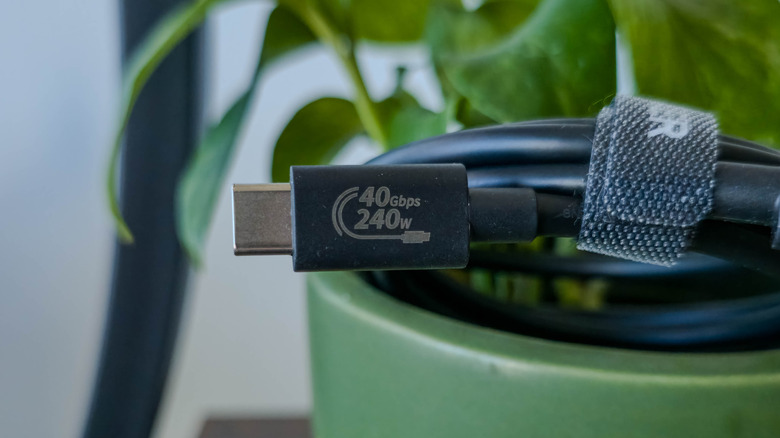
لقطة مقربة لكابل يو إس بي 4 مع ملصق يو إس بي-آي المُسمى 40 جيجابت في الثانية 240 واط ماكس ميلر لموقع إنغاجيت

طريقة حصول منفذ يو إس بي سي على هذا القدر من الالتباس تُعد تاريخًا مثيرًا للاهتمام بالنسبة لبعض الأشخاص، لكن ما يهمك هو معرفة ما يمكن أن تفعله منافذ وكابلات يو إس بي سي الخاصة بك. الحقيقة هي أن الوعد بعدم الحاجة إلى كابل واحد فقط لجميع أجهزتك لم يتحقق. عليك فقط معرفة ما تبحث عنه.

إذا كنت محظوظًا، فمن المحتمل أن يكون لدى منتج يو إس بي سي قدراته مُسماة بوضوح على الكابل أو المنفذ. لقد بسطت جمعية يو إس بي-آي علامتها التجارية، لذا يمكن للمنتجات المعتمدة من قبلها الآن أن تذكر بوضوح، على سبيل المثال، "يو إس بي 80 جيجابت في الثانية 240 واط" إذا كان المنتج يدعم أحدث مواصفات إصدار يو إس بي 4 الإصدار 2.0.

ومع ذلك، فإن العديد من منتجات USB-C ليست معتمدة من قبل USB-IF لأن الشركات لا ترغب في إنفاق الوقت والمال على عمليات الاعتماد. في معظم الحالات، ستحتاج إلى إيلاء اهتمام كبير للمواصفات قبل الشراء. إذا كنت تشتري جهاز كمبيوتر أو محمول مزود بعدة منافذ USB-C، فقد تحتاج إلى البحث في الوثائق للعثور على القدرات الدقيقة لكل منها.

ولكن ماذا لو كان الجهاز أو الكابل الذي تملكه بالفعل؟ إذا لم تتمكن من العثور على قدراته USB مدرجة عبر الإنترنت، فإن أفضل رهان لديك هو تحديد ذلك بنفسك. إذا كان المنفذ المعني موجودًا في جهاز كمبيوتر يعمل بنظام ويندوز، يمكنك التحقق في مدير الأجهزة لمعرفة جيل USB الذي يمتلكه. يمكنك أيضًا اختبار السرعات تجريبيا عن طريق توصيل SSD محمول عالي السرعة ونقل ملف كبير، ثم مراقبة سرعة النقل أثناء نسخه. أما بالنسبة للفيديو الخارجي، ستعرف بسرعة أن منفذ أو كابل USB-C الخاص بك يفتقر إلى وظيفة Alt Mode إذا لم تتمكن من الحصول على إشارة فيديو تظهر على شاشة خارجية أو تلفزيون.

USB-Cspeedsports
الخبر متوفّر باللغات التالية:English
المصدر الأصلي للخبر
إنجاجيت

A USB-C port isn't a guarantee of high speeds: here's why

July 06, 2026·Engadget
A USB-C port isn't a guarantee of high speeds: here's why

USB-C promised simplicity, but has turned into a mystery box of different specs.

By Max Miller July 6, 2026 11:30 am EST zoff/Shutterstock

USB-C has markedly improved the way we use our devices. A single, universal connector type to rule them all, it's now the de-facto standard for modern devices, capable of data transfer, power delivery and even video output. The latest and fastest generation of USB, USB4, is capable of bidirectional data transfer rates up to 80 gigabits per-second (Gbps). To put that in perspective, you can transfer a whopping 100 gigabytes in just over 10 seconds at that speed.

But don't pick a USB-C equipped device up at random expecting it to have blazing fast speeds. USB-C is not a single specification. Rather, it is a wrapper for one of a number of different specifications, ranging from those that were around when the connector first debuted in 2014 to the latest standards in 2026. When picking up a USB-C device at random, you could end up with a powerful USB4 port, but you could also wind up saddled with a much slower USB 2.0 connection. Even the best USB-C hub we recommend in 2026 tops out at USB 3.1.

Apple recently gave us a perfect example of this unpredictability with its latest laptop, the MacBook Neo. The Neo is a budget device which bowed at $600 (it has since undergone a price hike to $700). To hit that competitive price point, Apple made some concessions, one of which was to include a weaker USB 2.0 port capable of only 480Mbps transfer rates alongside a somewhat stronger USB 3.2 Gen 2 port capable of 10Gbps. Nonetheless, both are visually identical USB-C ports.

So, how did this connector that looks so simple on the outside become so internally convoluted, and how can you determine the actual capabilities of your USB-C devices? Here's what you need to know.

How USB-C got so messy

An assortment of USB-C equipped devices Max Miller for Engadget

USB-C was meant to be simple. When it arrived in 2014, consumers were living through a Babel's tower of connection standards. Your computers had USB Type-A, but your printer had Type-B, while your Android phone had one of two unique Micro USB ports. Meanwhile, your iPod had Apple's 30-pin or Lightning connector, your camcorder may have had a barrel connector for charging. Video output needed DisplayPort or HDMI, and so on. It was a mess, and I suspect I've given some readers a war flashback by bringing it up.

USB-C was contrastingly simple. It was small enough to fit on any device, reversible so you could plug it in upside down, and it was an all-in-one solution for charging, data transfer, peripheral connectivity, and video output. One cable was all you'd need, and peace on earth would finally be achieved.

But that utopian vision was broken by two unavoidable facts: connectivity standards evolve and tech companies are parsimonious margin-crunchers. USB-IF, the consortium which implements USB standards, could not mandate that companies make their USB-C devices with the latest specs in mind, so a USB-C port or cable that could actually do everything the connector was capable of became exceedingly rare. Meanwhile, USB specification revisions became increasingly convoluted during the USB 3.x years, until we arrived at a point where USB 3.2 Gen 2x2 was twice as fast as the almost identically named USB 3.2 Gen 2. OEMs took advantage of the confusion to sell USB-C devices with generic USB 3 marketing language.

Other companies pushed out charging-only cables, or basic data cables that ran at outdated USB 2.0 speeds. If consumers couldn't understand why their brand-new devices were transferring files so slowly or couldn't output video, it was their problem, not the manufacturer's.

How to figure out what your USB-C ports can do

Close-up of USB4 cable with USB-IF branded label reading 40Gbps 240W Max Miller for Engadget

The way USB-C got so confusing is an interesting history for some, but what matters to you is figuring out what your USB-C ports and cables are actually capable of. The truth is that the promise of only needing a single cable for all your devices didn't go unfulfilled. You just have to know what to look for.

If you're lucky, a USB-C product will have its capabilities clearly labeled right on the cable or port. The USB-IF has simplified its branding, so USB-IF certified products can now clearly state, for example, "USB 80Gbps 240W" if the product supports the latest USB4 Version 2.0 spec revision.

However, many USB-C products are not USB-IF certified because companies don't want to spend the time and money on certification processes. In most cases, you'll need to pay close attention to the specs before you buy. If you're buying a PC or laptop with multiple USB-C ports, you may need to go digging through documentation to find the precise capabilities of each one.

But what if it's a device or cable you already own? If you can't find its USB capabilities listed online, your best bet is simply to determine them yourself. If the port in question is on a Windows PC, you can check in Device Manager to see which USB generation it has. You can also test speeds empirically by connecting a high-speed portable SSD and transferring a large file, then watching the transfer speed as it copies over. As for video out, you'll know pretty quickly that either your USB-C port or cable lacks Alt Mode functionality if you can't get a video signal to show up on an external monitor or TV.

USB-Cspeedsports
This article is also available in:العربية
Original source article
Engadget