USB4 مقابل USB-C: ما هو الفرق بينهما؟
15 أغسطس 2026·إنجاجيت
USB4 مقابل USB-C: ما هو الفرق بينهما؟

نحن هنا للإجابة على جميع أسئلتك المُلحة حول يو إس بي.

بقلم ديف ميكلهام 15 آب/أغسطس، 2026 9:00 ص EST Redunnlev/Getty Images

تسميات يو إس بي (USB) معقدة بعض الشيء. يو إس بي 3.2! يو إس بي-A! يو إس بي4! يو إس بي-C! عندما يتعلق الأمر بالنوعين الأخيرين، فأنت تتعامل في الواقع مع كيانين منفصلين تمامًا.

يعتمد وقت ومبرر شراء كابلات USB4 على الأجهزة التي تستخدمها. إذا اشتريت حاسوبك المحمول أو جهاز الكمبيوتر قبل عام 2019، فستكون منافذ أجهزتك محدودة بـ USB 3.2، مما يعني أن لديك عرض نطاق ترددي أقل بكثير لنقل البيانات بسرعات عالية. يمثل يو إس بي4 ترقية ملحوظة عن الأجيال السابقة، حيث يمكن لأسلاك واحدة تشغيل إعداد يتضمن شاشات خارجية ومحطات ربط وأقراص صلبة فائقة السرعة (SSDs). دعونا نتعمق في مواصفات USB4.

كيف أعرف ما إذا كان لدي منفذ USB4 أو USB-C؟
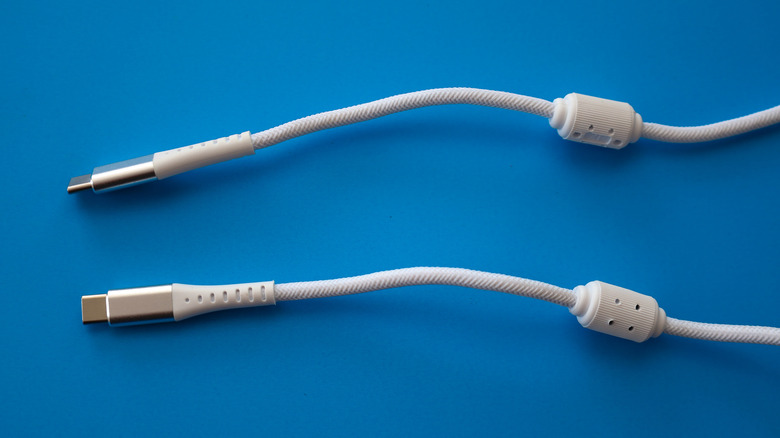
كابلين أبيضين USB على سطح أزرق. Oleh Strus/Getty Images

لا يمكن أن يكون الأمر كذلك. منفذ USB-C هو المنفذ الذي تُدخل فيه كابلات الشحن أو الأجهزة الطرفية؛ أما USB4 فهو أحدث معيار USB. ومن المهم ملاحظة أنه في حين أن جميع كابلات USB4 تستخدم منفذ USB-C، فإن منافذ USB-C الأقدم لن تدعم عرض النطاق الترددي الأعلى لـ USB4. وهذا يعني أنه إذا قمت بتوصيل جهاز USB4، على سبيل المثال، بمنفذ USB 3.2، فستكون محدودًا بعرض نطاق ترددي أقصاه 10 أو 20 جيجابت في الثانية (اعتمادًا على الجيل)، وليس 40 جيجابت في الثانية التي يمكن للجيل الأول من USB4 تحقيقها.

تم إطلاق USB4 في عام 2019، لذا إذا قمت بشراء جهاز كمبيوتر أو محمول جديد منذ عام 2020 فصاعدًا، فمن المحتمل أن يدعم الأجهزة أحدث معيار USB. أما بالنسبة لكيفية معرفة ما إذا كان جهازك متوافقًا مع USB4، تحقق من المنفذ لوجود شعار "USB4" أو "Thunderbolt" (يدعم USB تقنية Thunderbolt 3). لا تضع جميع الشركات المصنعة علامات على المنافذ في منتجاتها بنفس الطريقة، لذا إذا كنت لا تزال غير متأكد، تحقق من دليل المستخدم الخاص بجهازك لمعرفة ما إذا كان معتمدًا من USB4.

ما الذي يجعل USB4 أفضل؟
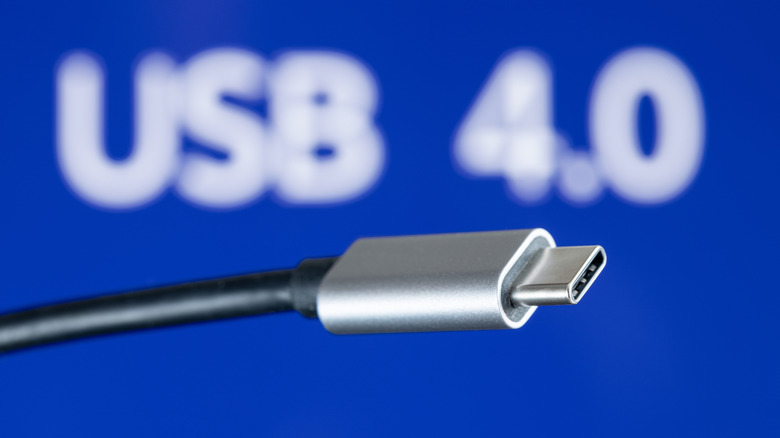
كابل USB4 ضد خلفية زرقاء. Formatoriginal/Shutterstock

أحدث معيار USB أسرع بكثير من الأجيال السابقة. في حين أن الجيل الأول من USB 3.2 كان مقتصرًا على معدل نقل بيانات ضئيل يصل إلى 5 جيجابت في الثانية، يمكن لـ USB4 الوصول إلى 40 جيجابت في الثانية. إذا كنت تجد نفسك بانتظام تقوم بتحرير ونقل ملفات فيديو كبيرة بدقة 4K بين محطات العمل، فستشعر حقًا بميزة تحسين السرعة هذا.

على عكس USB 3.2، يدعم USB4 إخراج الفيديو. يمكن لكابل USB4 التعامل في نفس الوقت مع عمليات نقل البيانات السريعة واستضافة إشارة الفيديو والتعامل مع الشحن. يمكن لـ USB4 أيضًا مشاركة عرض النطاق الترددي ديناميكيًا بين نقل البيانات واحتياجات الفيديو اعتمادًا على ما يقوم به المستخدم. قدرة المعيار على دعم الإشارات عالية الدقة تعني أن التكنولوجيا مناسبة تمامًا لشاشات الألعاب، والتي أصبحت العديد منها الآن بدقة 4K (أو أعلى).

هل تستحق ترقية USB4؟
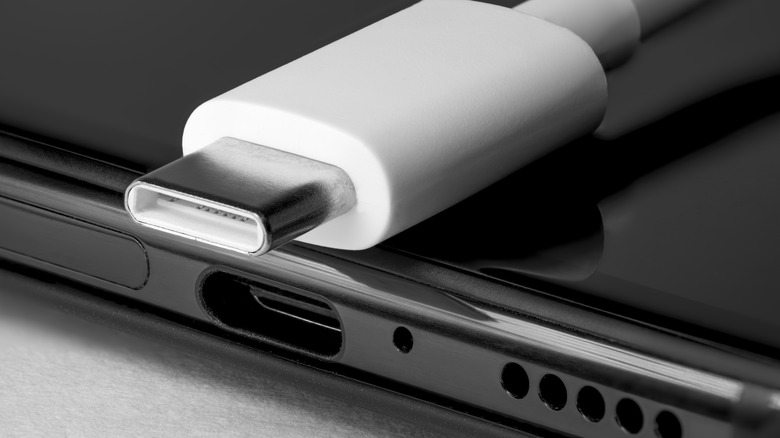
كابل USB4 بجانب حاسوب محمول. Alexander_Evgenyevich/Shutterstock

USB4 تستحق الترقية بالتأكيد إذا كنت بحاجة إلى سرعات نقل سريعة. توفر أحدث أجهزة USB4 الإصدار 2.0 عرض نطاق ترددي يصل إلى 80 جيجابت في الثانية، مما يعني أنه يمكنك نقل الملفات الكبيرة بسرعة فائقة. كما أن تخصيص عرض النطاق الترددي هذا يجعل من USB4 خيارًا رائعًا إذا كان لديك SSD محمول جيد، حيث يدعم التنسيق سرعات كتابة تصل إلى 4000 ميجابايت في الثانية (ارتفعت إلى 8000 ميجابايت في الثانية مع USB4 2.0).

إذا كنت ترغب في الحصول على حاسوب محمول جديد لامع بمنافذ USB4، فستحصل على فوائد أخرى مقارنة بـ USB 3.2. يفتخر المعيار الأحدث بدعم ممتاز لتوصيل شاشات عالية الدقة، ويرجع ذلك جزئيًا إلى أن USB4 يدعم توجيه DisplayPort. هذا يعني أنه إذا كان حاسوبك المحمول أو جهاز الكمبيوتر الخاص بك يدعم USB4، يمكنك بث دقة عالية ومعدلات تحديث سريعة عبر كابل USB4 واحد. على صعيد أكثر تخصصًا، يعمل USB4 أيضًا بشكل أفضل بكثير مع وحدات معالجة الرسومات الخارجية مقارنة بالأجيال السابقة. بالطبع، إذا كنت تستخدم فقط الأجهزة الطرفية منخفضة الطاقة اليومية (مثل الفأرة واللوحات المفاتيح السلكية)، فلا معنى للترقية إلى حاسوب محمول جديد يدعم USB4 بشكل خاص.

USB-CUSB4difference
الخبر متوفّر باللغات التالية:English
المصدر الأصلي للخبر
إنجاجيت

USB4 Vs USB-C: What's the difference between them?

August 15, 2026·Engadget
USB4 Vs USB-C: What's the difference between them?

We're here to answer all your burning USB questions.

By Dave Meikleham Aug. 15, 2026 9:00 am EST Redunnlev/Getty Images

USB naming conventions are a smidge tricky. USB 3.2! USB-A! USB4! USB-C! When it comes to the latter two, you're actually dealing with two entirely separate entities.

When and why you should buy USB4 cables comes down to the hardware you're using. If you bought your laptop or PC before 2019, its ports will be limited to USB 3.2, meaning you'll have far less bandwidth for high-speed data transfers. USB4 represents a marked upgrade on previous generations, with a single cable capable of powering a setup that includes external monitors, docking stations and lightning-quick SSDs. Let's get into the specs of USB4.

How do I know if I have USB4 or USB-C?

Two white USB cables on a blue surface. Oleh Strus/Getty Images

It's not either/or. USB-C is the connector you plug your charging cables or peripherals into; USB4 is the latest USB standard. It's also important to note that while all USB4 cables use USB-C, older USB-C connectors won't support USB4's higher bandwidth. That means if you plug a USB4 device into, say, a USB 3.2 port, you'll be limited to that standard's max 10 or 20 Gbps bandwidth (depending on the generation), not the 40 Gbps first-gen USB4 is capable of.

USB4 launched back in 2019, so if you've bought a new PC or laptop from 2020 onward, there's a good chance your hardware supports the latest USB standard. As for how to tell whether your device is compatible with USB4, check the connector for either a "USB4" or "Thunderbolt" lightning logo (USB supports Thunderbolt 3 tech). Not all manufacturers label the ports on their products the same way, so if you're still unsure, check your device's manual to find out whether it's USB4 certified.

What makes USB4 better?

A USB4 cable against a blue backdrop. Formatoriginal/Shutterstock

The most recent USB standard is a whole lot faster than previous generations. Whereas the first generation of USB 3.2 was limited to a measly max data transfer rate of just 5 Gbps, USB4 can hit 40 Gbps. If you regularly find yourself editing and transferring large 4K video files between workstations, you're really going to feel the benefit of that speed upgrade.

Unlike USB 3.2, USB4 supports video output. A single USB4 cable can simultaneously tackle speedy data transfers, host a video signal and handle charging. USB4 can also dynamically share its bandwidth between data transfer and video needs depending on what the user is doing. The standard's ability to support high-resolution signals means the tech is well suited for gaming monitors, many of which are now 4K (or above).

Is USB4 worth the upgrade?

A USB4 cable next to a laptop. Alexander_Evgenyevich/Shutterstock

USB4 is definitely worth the upgrade if you need fast transfer speeds. The latest USB4 Version 2.0 devices offer bandwidth up to 80 Gbps, which means you can transfer large files in ultra-fast fashion. Said bandwidth allocation also makes USB4 a terrific option if you have a good portable SSD, as the format supports write speeds of up to 4,000 MB/s (upped to 8,000 MB/s with USB4 2.0).

If you have your heart set on a shiny new laptop with USB4 ports, you're in for other benefits compared to USB 3.2. The more recent standard boasts excellent support for connecting dual hi-res monitors, in part because USB4 supports DisplayPort funneling. This means that if your laptop or PC supports USB4, you can broadcast high resolutions and responsive refresh rates through a single USB4 cable. On a slightly more niche note, USB4 also works far better with external GPUs than previous generations. Of course, if you only use low-power, everyday peripherals (like wired mice and keyboards), upgrading to a new laptop specifically because it supports USB4 doesn't make much sense.

USB-CUSB4difference
This article is also available in:العربية
Original source article
Engadget