أي منفذ يو إس بي يجب استخدامه للفأرة وللوحة المفاتيح؟
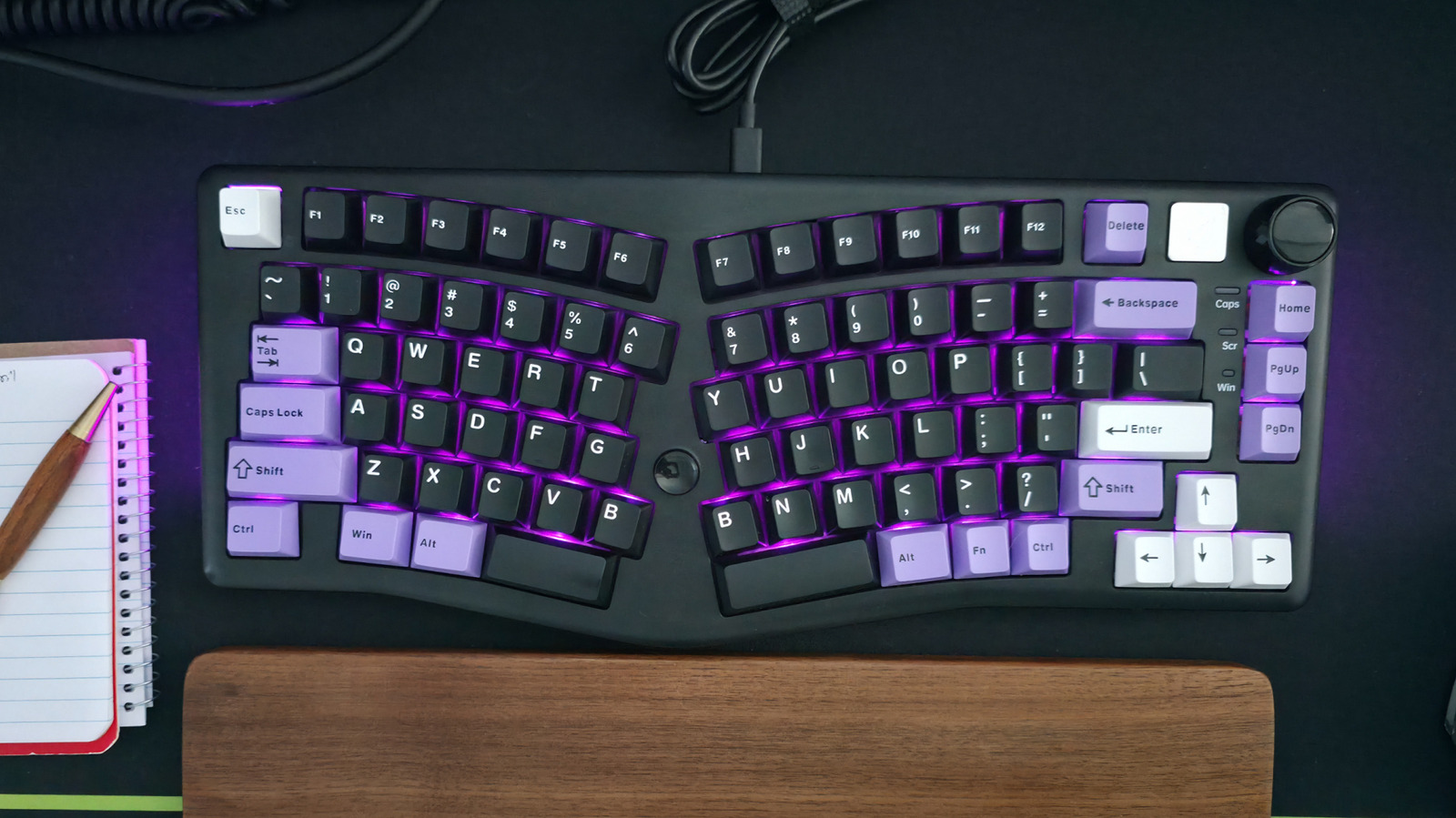
11 يوليو 2026·إنجاجيت
أي منفذ يو إس بي يجب استخدامه للفأرة وللوحة المفاتيح؟

احفظ أفضل منافذك للأجهزة الأكثر طلباً.

بقلم ماكس ميلر في 11 يوليو، 2026 11:30 صباحًا بتوقيت شرق الولايات المتحدة ماكس ميلر لموقع Engadget

قد يكون إعداد الكمبيوتر عملية معقدة، ولكن هناك شيء تفترض أنه بسيط وهو توصيل ملحقات وأجهزة USB الخاصة بك مثل لوحة المفاتيح والماوس. من المؤسف أن حتى هذا الفعل البسيط يبدو أنه يتطلب بعض المعرفة التقنية التي بدونها ستنتهي بك الحال إلى إعاقة نفسك على المدى الطويل.

إذا كنت غير معتاد على تعقيدات معايير USB المختلفة، فقد يكون من الصعب معرفة أي المنافذ هي الأنسب للماوس أو لوحة المفاتيح. قد يحتوي كمبيوترك على أي عدد من منفذ واحد USB إلى أكثر من عشرة منها. لكنها ليست جميعًا متساوية. قد يكون أحدها منفذ USB 3.2 Gen 2x2 عالي الطاقة أو منفذ USB4 قادر على سرعات فائقة، في حين أن آخر قد يكون منفذ USB 2.0 منخفض الطاقة.

من المرجح أن تكون لوحة المفاتيح والماوس أقل الإكسسوارات طلبًا، حيث تتطلب عرض نطاق ترددي ضئيل للغاية. في حين أن أي منفذ سيغذي أجهزة الإدخال الطرفية الخاصة بك ويسمح لها بالعمل بأفضل أداء ممكن، إلا أن اختيار المنافذ الخاطئة سيترك لك خيارات أسوأ للأكسسوارات الأخرى الأكثر طلبًا مثل محركات SSD المحمولة ووسائط التخزين، والشاشات الخارجية ومحولات USB. لترك هذه المنافذ حرة، يجب توصيل لوحة المفاتيح والماوس بأي منافذ USB 2.0 مفتوحة. إليك السبب.

احفظ منافذ يو إس بي عالية السرعة للأقراص الصلبة والأجهزة التي تستهلك عرض النطاق الترددي
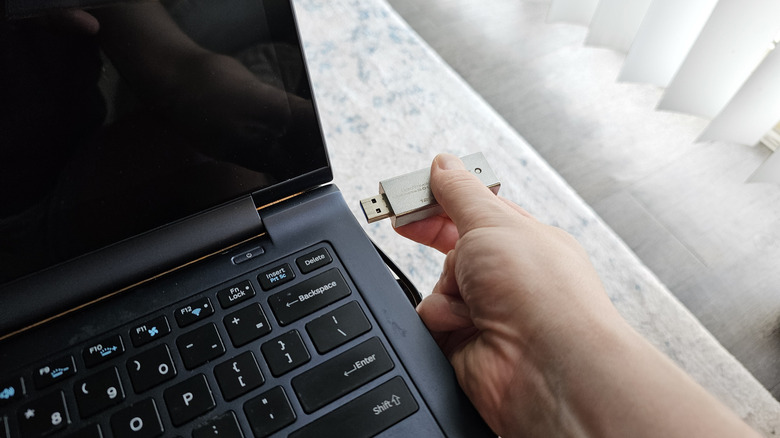
توصيل محرك أقراص فلاش إلى حاسوب محمول بقلم ماكس ميلر لموقع Engadget

بشكل عام، يجب أن توصّل الفأرة أو لوحة المفاتيح إلى أقل منافذ يو إس بي قوة. تتطلب الأجهزة الطرفية للإدخال طاقة وبيانات قليلة جداً للعمل بشكل صحيح، لذا فهي لا تحتاج إلى سرعات الشحن العالية وقدرات نقل البيانات لمنافذ يو إس بي 3.x أو يو إس بي 4. يجب أن تحفظ تلك المنافذ لمحركات الأقراص الفلاشية والأقراص الصلبة وأجهزة التخزين الأخرى التي تتطلب كامل قدرات منفذ يو إس بي لتحقيق أفضل أداء ممكن.

هناك بعض التحذيرات التي يجب مراعاتها عند اتباع هذه القاعدة العامة. أولاً، إذا كنت تتصل بمؤشر الماوس ولوحة المفاتيح عبر أحد أفضل محولات أو منافذ USB-C، وتخطط أيضًا لتوصيل أجهزة تخزين أو أجهزة أخرى ذات عرض نطاق ترددي عالي بالمحول، فيجب عليك اختيار منفذ USB عالي السرعة مناسب لتلك الأجهزة. إذا كان لمحول USB نفسه أنواع متعددة من المنافذ، فاتصل بمؤشر الماوس ولوحة المفاتيح إلى منافذ أبطأ بينها.

إذا كان جهاز الكمبيوتر الخاص بك يحتوي على كل من منافذ USB Type-A و Type-C، فمن المرجح (على الرغم من عدم ضمان ذلك) أن توفر منافذ USB-C سرعات أعلى. لذلك، إذا كانت لوحة المفاتيح أو مؤشر الماوس يستخدم اتصالًا من نوع USB-C، فيمكن أن يكون من الجيد توصيل هذه الأجهزة بجهاز الكمبيوتر الخاص بك باستخدام كابل USB-C إلى USB-A.

أخيرًا، إذا كانت لوحة المفاتيح نفسها تحتوي على محول USB مدمج مع منافذ USB 3.x، فيجب عليك توصيل لوحة المفاتيح بمنفذ عالي الطاقة على جهاز الكمبيوتر لدعم الأجهزة المتصلة بلوحة المفاتيح. إذا كنت تخطط فقط لتشغيل مؤشر ماوس خارج لوحة المفاتيح، فقد يكون من الجيد استخدام منفذ أقل مواصفات، لذا اختر أي ترتيب يدعم حالة الاستخدام المثالية الخاصة بك.

USBmousekeyboard
الخبر متوفّر باللغات التالية:English
المصدر الأصلي للخبر
إنجاجيت

Which USB port should you use for your mouse and keyboard?

July 11, 2026·Engadget
Which USB port should you use for your mouse and keyboard?

Save your best ports for your most demanding devices.

By Max Miller July 11, 2026 11:30 am EST Max Miller for Engadget

Setting up your computer can be a complicated process, but one thing you'd assume to be simple is plugging in your USB accessories and peripherals such as a keyboard and mouse. Unfortunately, even that seemingly simple act requires a bit of technical knowledge without which you'll end up hamstringing yourself in the long run.

If you're unfamiliar with the intricacies of various USB standards, it can be difficult to know which ports are best suited to a mouse or keyboard. Your computer may have anywhere between a single USB port and over a dozen of them. But they're not all created equal. One may be a high-powered USB 3.2 Gen 2x2 or USB4 port capable of blazing fast speeds, while another might be a low-powered USB 2.0 port.

Your keyboard and mouse are most likely to be your least demanding accessories, requiring very little bandwidth. While any port will power your input peripherals and allow them headroom to perform at their best, choosing the wrong ports will leave you with worse options for other, more demanding accessories such as portable SSDs and storage drives, external monitors and USB hubs. To leave those ports free, your keyboard and mouse should be plugged into any open USB 2.0 ports. Here's why.

Save your high-speed USB ports for SSDs and bandwidth-hungry devices

Connecting USB flash drive to laptop Max Miller for Engadget

In general, you should connect a mouse or keyboard to your least powerful USB ports. Input peripherals require very little power and data to work properly, so they do not require the high charging speeds and data transfer capabilities of USB 3.x or USB4 ports. Those ports should be saved for flash drives, SSDs, and other storage devices which require a USB port's full capabilities to achieve their best performances.

There are a few caveats to that rule of thumb, though. First, if you're connecting your mouse and keyboard through one of the best USB-C hubs or docks, and also plan on connecting storage devices or other high bandwidth gadgets to the hub, you should choose a high-speed USB port that is suited to those devices. If the USB hub itself has multiple port types, connect the mouse and keyboard to the lowest-speed ports among them.

If your computer has both USB Type-A and Type-C ports, the USB-C ports are likely (though not guaranteed) to deliver higher speeds. Therefore, if your keyboard or mouse uses a USB-C connection, it can be a good idea to connect those devices to your computer with a USB-C to USB-A cable.

Lastly, if your keyboard itself has a built-in USB hub with USB 3.x ports, you should connect the keyboard to a high-powered port on your computer in order to support devices plugged into the keyboard. If you only plan to run a mouse out of the keyboard, you may still be okay using a lower-spec port, so choose whichever arrangement best supports your ideal use case.

USBmousekeyboard
This article is also available in:العربية
Original source article
Engadget